You know those looping videos online that flow seamlessly from the end and back to the beginning without any noticeable cuts? One way to create these videos is with Runway’s directional looping capabilities.
However, not many Runway users know how to do so or are even aware that it can be done. To help with this, I’ve put together a simple but detailed how-to guide that breaks it all down.
Let me show you how to become a Runway looping video expert in just a few steps!
Loop Videos with Runway: A Step-by-Step Guide
Creating a looping video may sound hard, but it’s all about making the last video frame transition seamlessly back into the first. To do this, you only need to follow the steps I have laid out below:
Step 1: Head to the Runway Dashboard
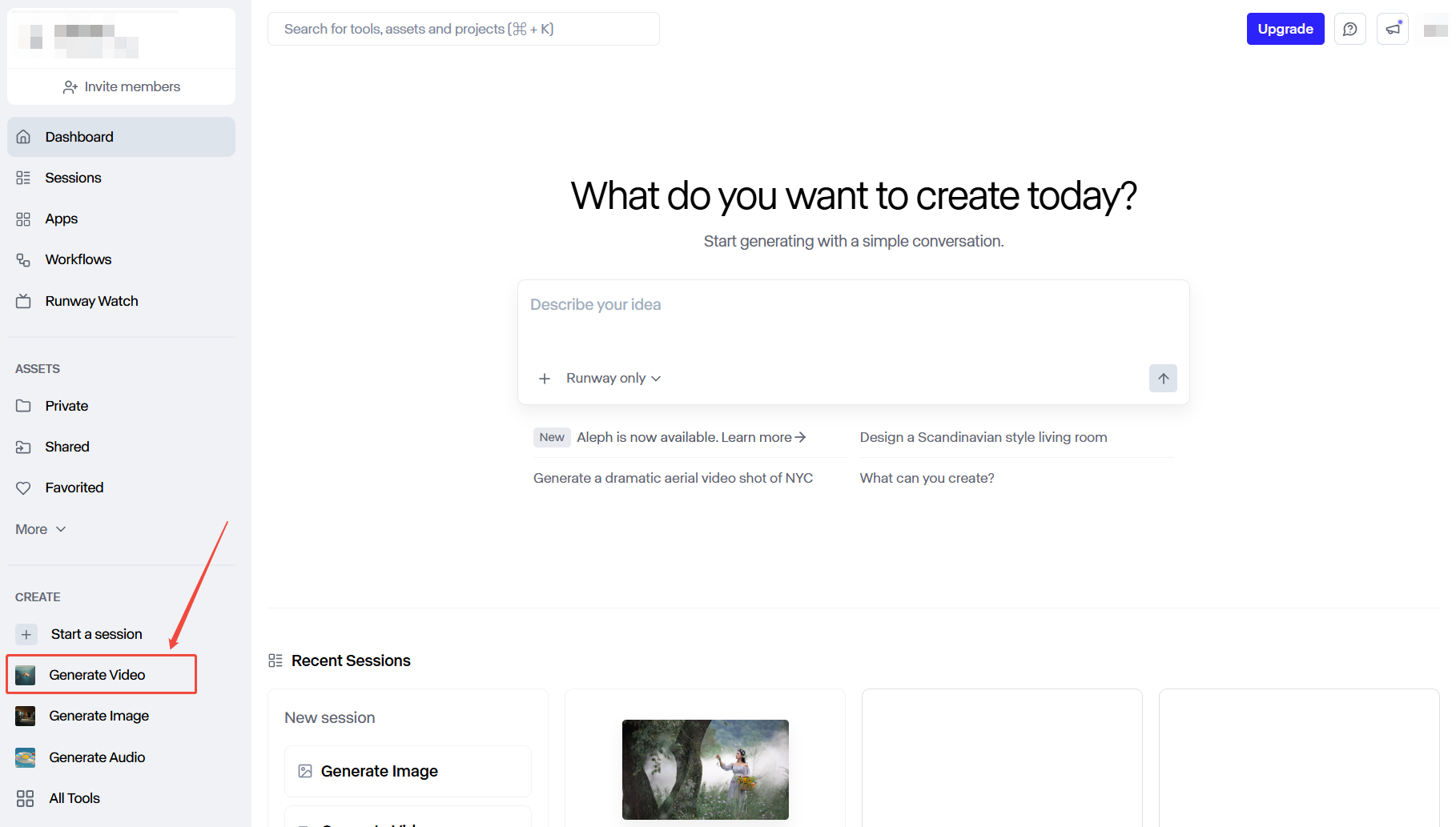
To get started, go to the Runway website and sign in to your account, which will take you to the dashboard. From there, scroll to the sidebar menu and click on ‘Generate Video’.
Step 2: Select the Runway Gen-3 Models
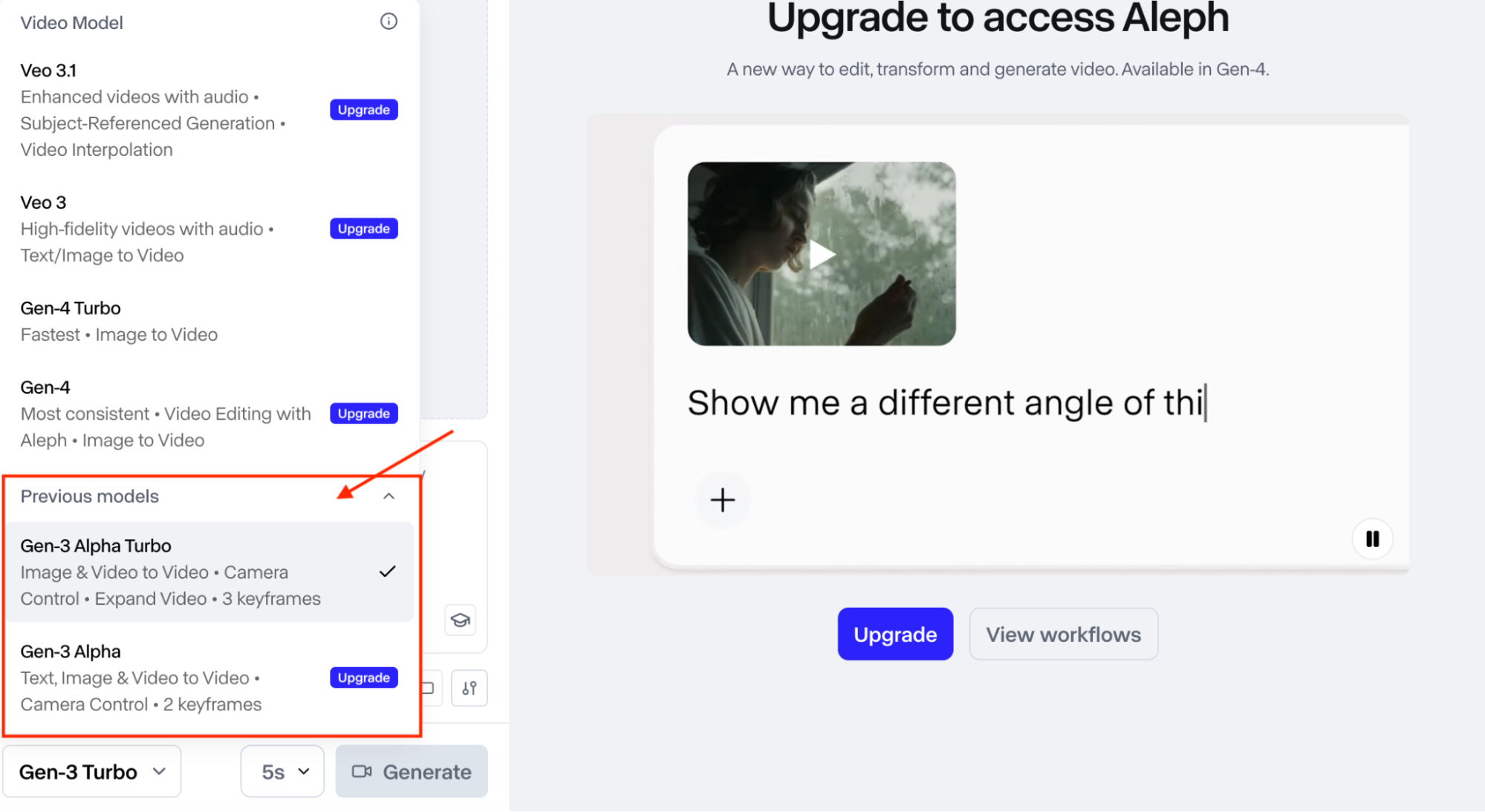
Once you’re on the AI video generator page, the first thing you will need to do is select the Gen-3 Alpha or Gen-3 Alpha Turbo models. These are the only models that will let you manipulate the camera control to loop videos directionally.
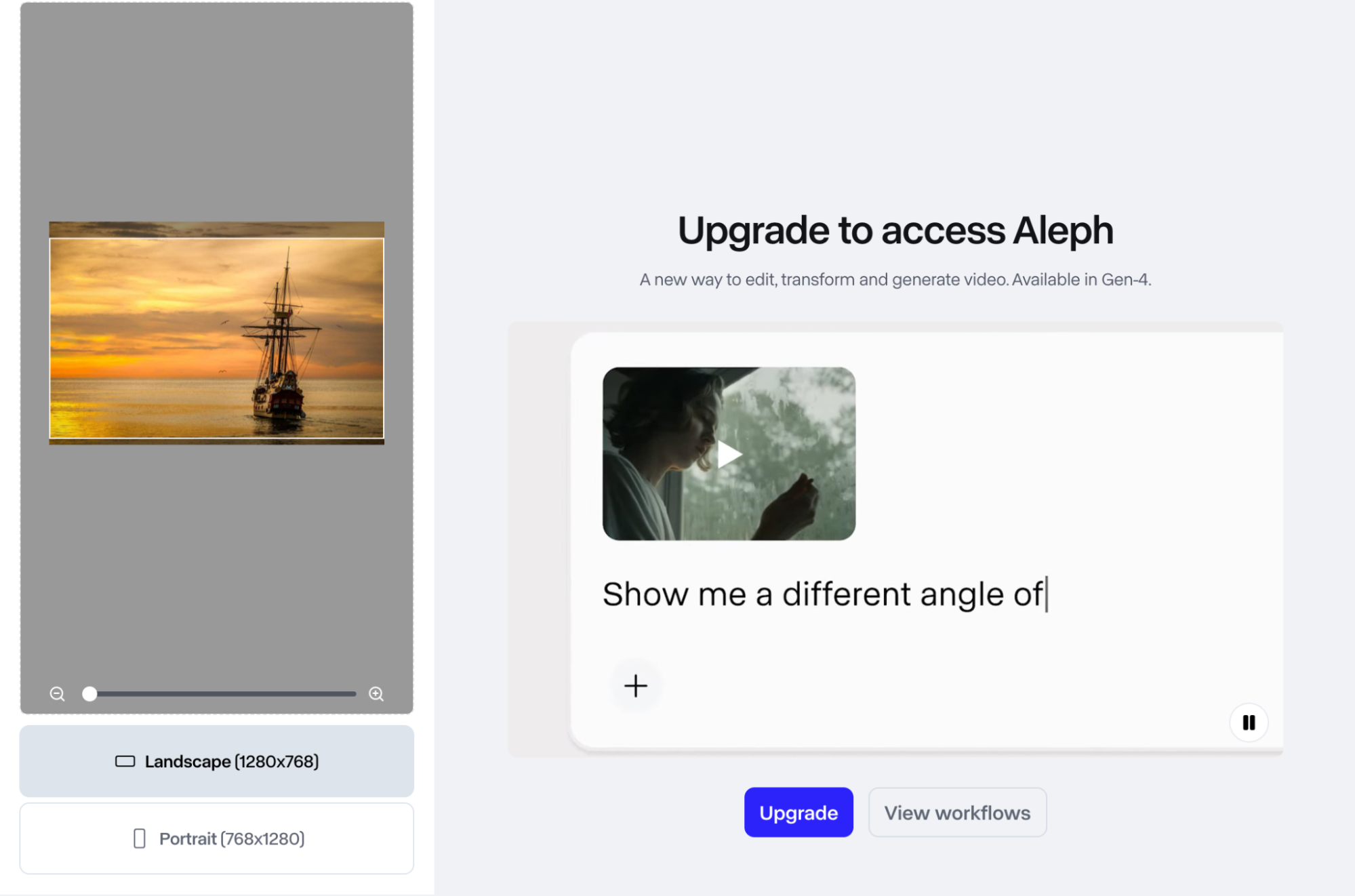
Step 3: Upload Your Desired Image
At this point, you can upload the image that you want to loop or choose one that’s saved in your ‘Assets’ folder. You can upload in portrait or landscape, but Runway may ask you to crop it to fit.
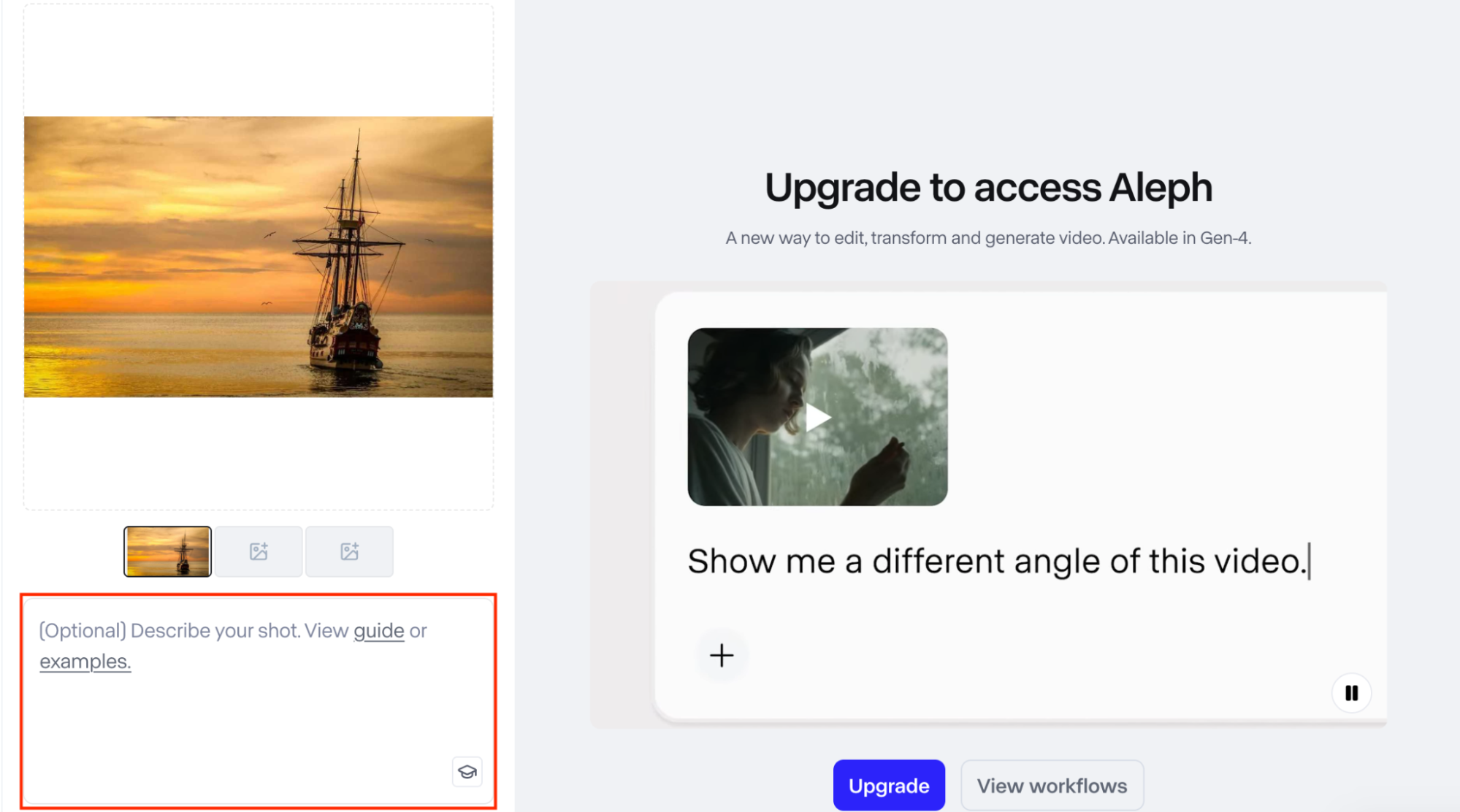
Step 4: Input Your Text Prompt (Optional)
Here, you can input a descriptive text prompt that details the shot you want. This is optional, so you can choose to use this if you want to customize the final scene further before looping.
Step 5: Set Your Camera Paths
Next up, you will need to click the Camera Control button under the prompt box. Here, you can generate multiple videos for each camera path that you want to see in the final video.
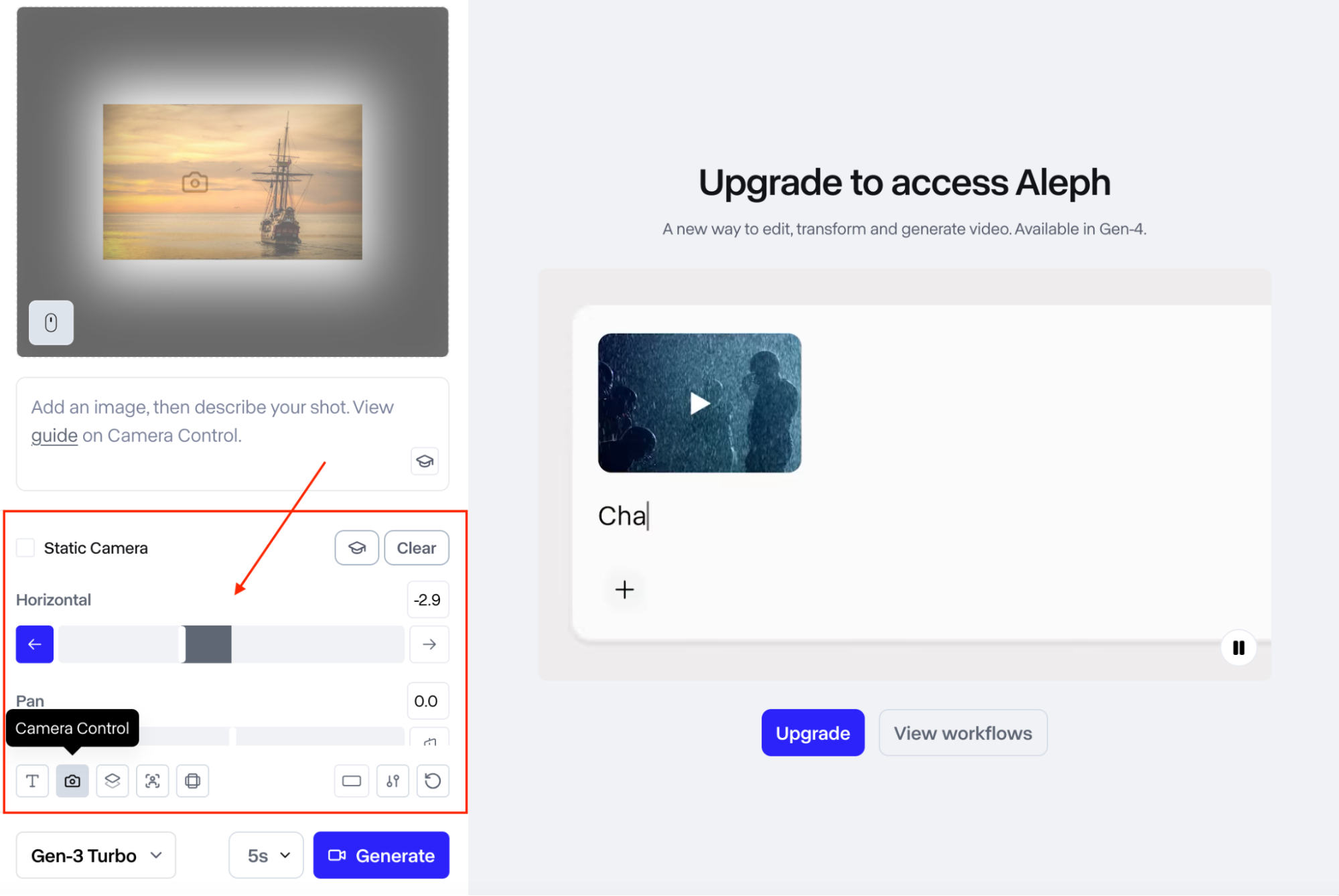
You can choose from ‘Horizontal’, ‘Pan’, ‘Vertical’, ‘Tilt’, ‘Zoom’, and ‘Roll’. Feel free to generate videos for all of these camera paths or mix and match a few of them; it’s up to you to decide.
Step 6: Select the Video Duration
Before generating, you will need to choose the video length. The Runway Gen-3 models let you select between 5 seconds and 10 seconds.
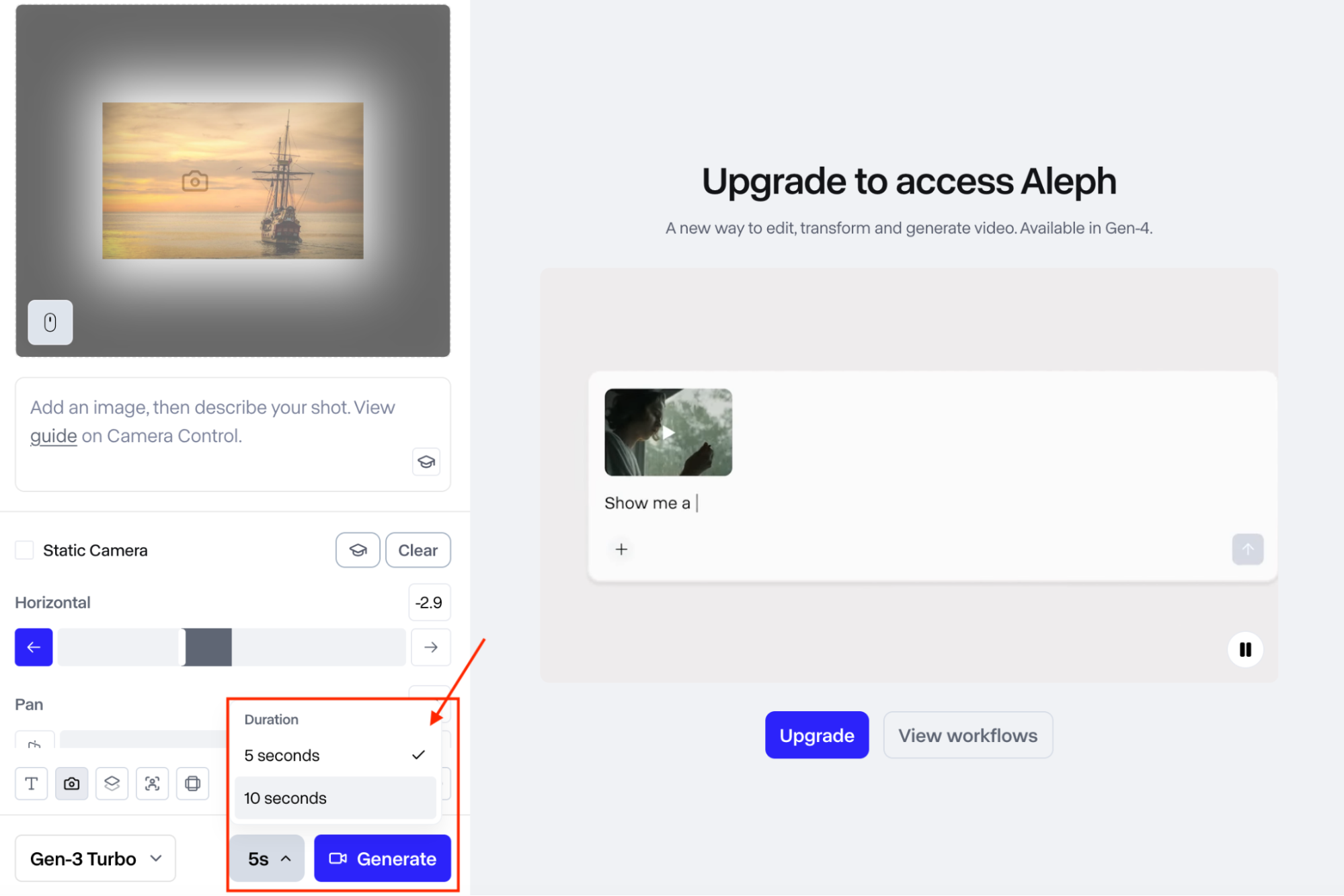
From there, just click the Generate button and repeat the process by setting a different camera path for the next video. Be sure to rename each video file to identify its camera path more easily.
Step 7: Create a Loop via Editing
To create a loop, you will need to play each video clip forward before duplicating it at the end. After that, play the duplicated clip backwards, which will reset it back to the first frame. You can also re-time the speed keyframes of each video for a more snappy result.
Repeat this step for all the other camera path videos that you generated. You can also combine all these different videos to create one long looping sequence. And if you want to enhance the looping in each video even further, export it in GIF format.
What’s the Best Runway Alternative For Looping Videos?
Now you know how to loop videos with Runway, but it’s not the only option that you should consider. If you need an alternative solution that’s just as effective, then I suggest HIX AI.
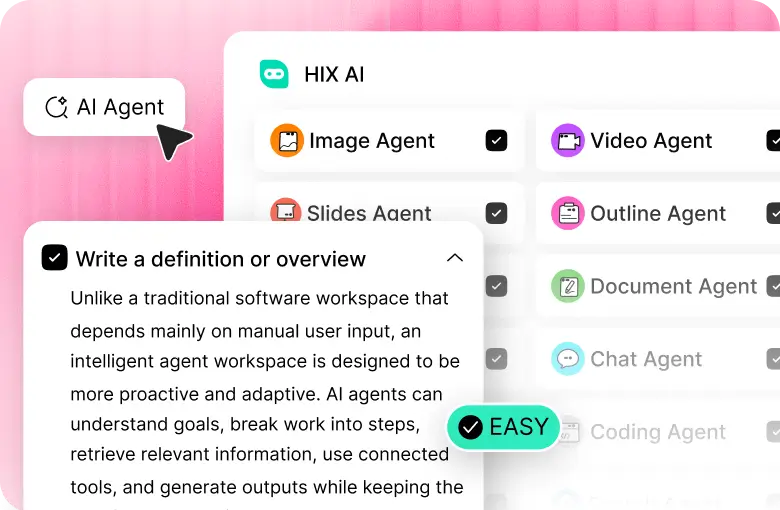
Why? It’s an incredibly advanced, all-in-one AI media creation platform that comes with both video and image generation capabilities.
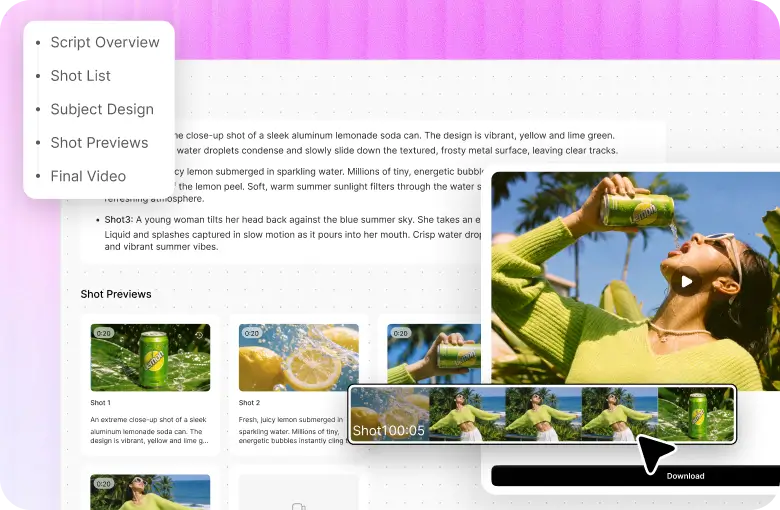
The platform’s AI video generator can convert both static images and text prompts into stunning videos with exceptional clarity and fidelity across a diverse range of styles.

But what I truly appreciate about this platform is that it comes integrated with all the latest, industry-leading AI models in the current market.
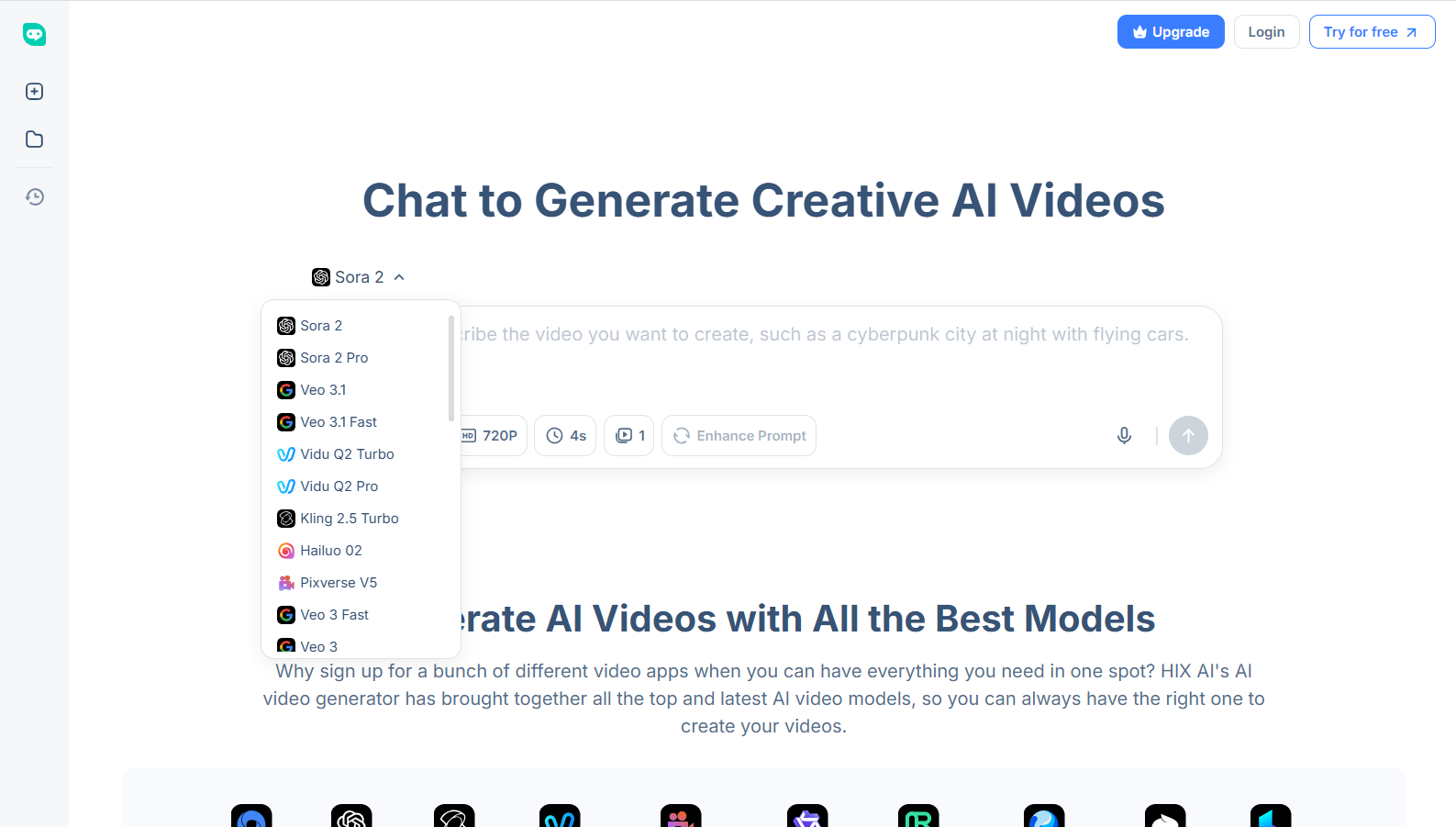
Aside from Runway, some of the other AI video models available include Sora 2, Vidu AI, Google Veo 3.1, Hailuo AI, PixVerse AI, Pika AI, and Luma AI, just to name a few.
And if you prefer to generate videos from scratch or reimagine existing footage, you can always switch over to HIX AI’s text to video AI and video to video AI.
But the fun doesn’t end there! You can also animate any subject image using AI video effects like the AI twerk video generator, AI hug generator, Earth Zoom In, AI bikini generator, etc.
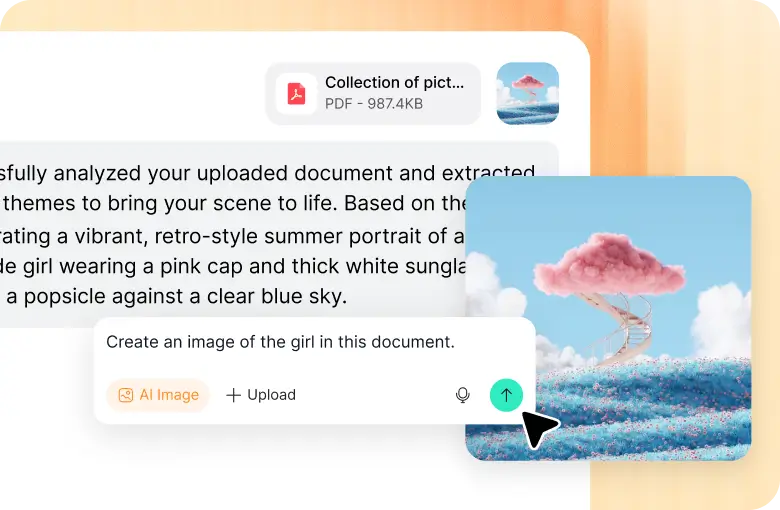
Besides, using its AI image generator, I can access Nano Banana, GPT-4o, Recraft, Stable Diffusion, Midjourney, Seedream, and other AI image models to produce unique, highly-detailed images easily. Based on these images, I can tap into image to video AI for high-quality video generation.
With HIX AI, you really can create masterful visual content in just a few clicks!
Conclusion
Whether you need a background video or a social media post, creating loop videos with Runway can be a quick way to get the job done. And if you follow the steps I have laid out here, it doesn’t have to be a complicated process.
But like I said before, you don't have to limit yourself to using Runway. Go on to explore HIX AI and its diverse AI video capabilities today. After all, it has a free plan for first-time users!