For AI avatar videos to feel more realistic, they need a voice. But how do you make them speak with natural timing and facial cues? This is where Kling AI Lip Sync comes in.
This advanced AI tool can instantly analyze any spoken audio input and animate the avatar’s lip movements, precisely synchronizing them with the words for a natural performance. As a Kling AI user, chances are that you want to know how to use it for your creative projects, right?
Well, sit back and relax, because I’m about to break it all down for you step-by-step!
What Options Does Kling AI Offer for Lip Syncing?
When using Kling AI Lip Sync, there are several options to consider that will allow you to create realistic dialogue for any avatar in a scene. So, let me sum them up before I get into the actual how-to steps:
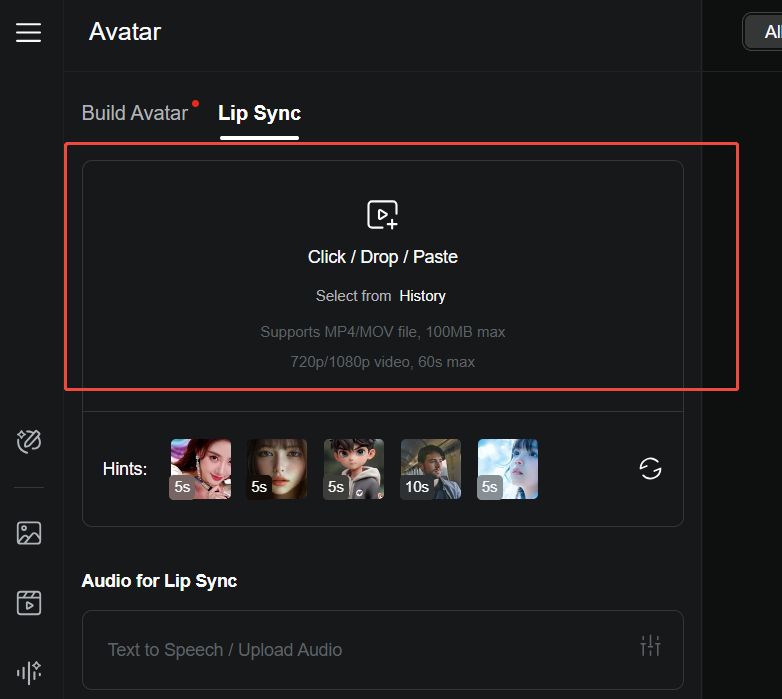
Upload a Video for Lip-Syncing
With Kling AI, you aren’t solely limited to lip-syncing Kling AI-generated videos. You can freely upload any front-facing video of an avatar for lip-syncing. So, whether it is a video of a real person, animal, or animated avatar, the tool can match its mouth movements to the audio.
Generate Speech Audio via Script
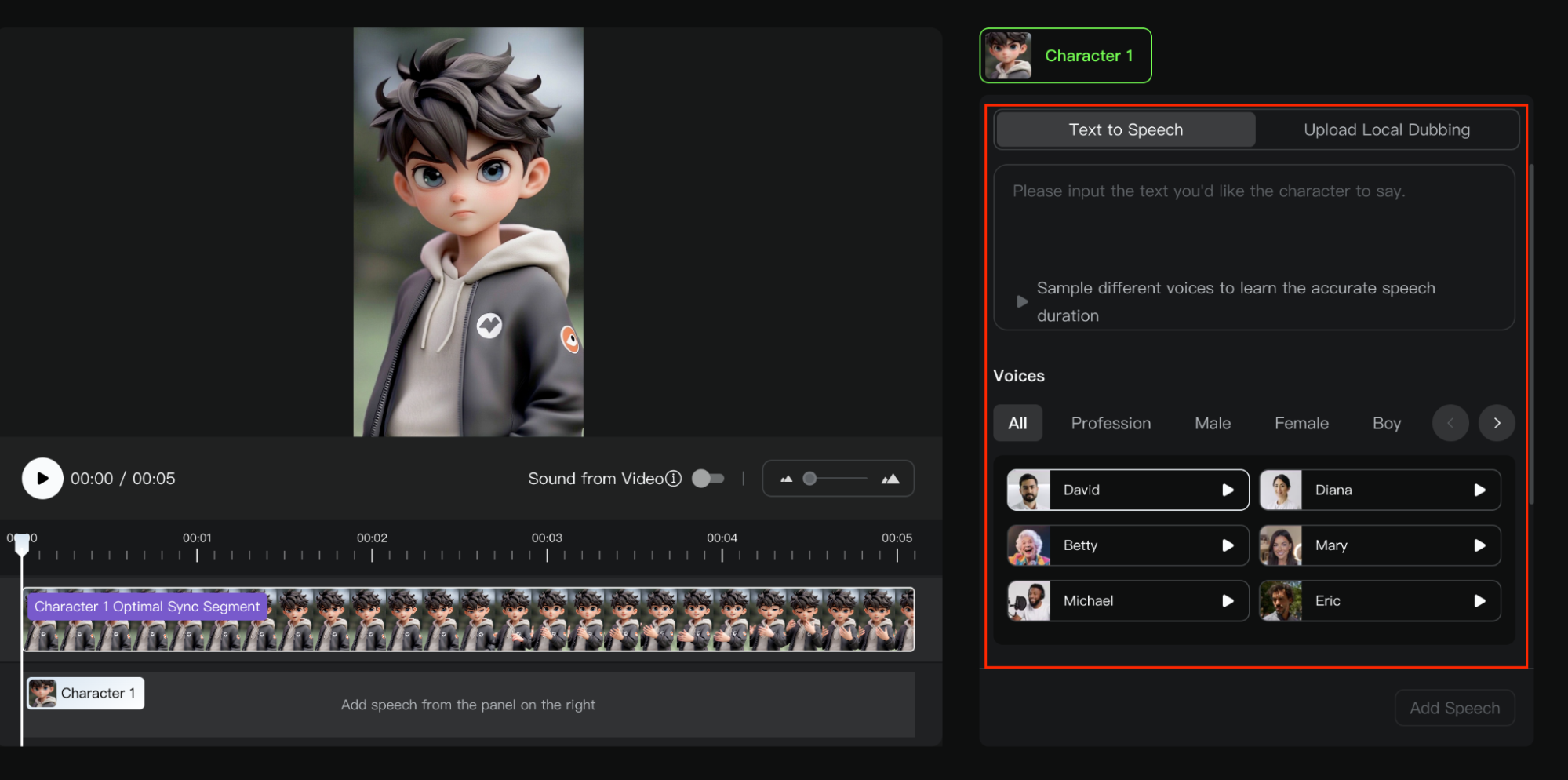
If you don’t have an audio recording, then you can use Kling AI Lip Sync’s text-to-speech capabilities. With only English and Chinese languages supported, this option lets you input the text of what you want the avatar in your video to say.
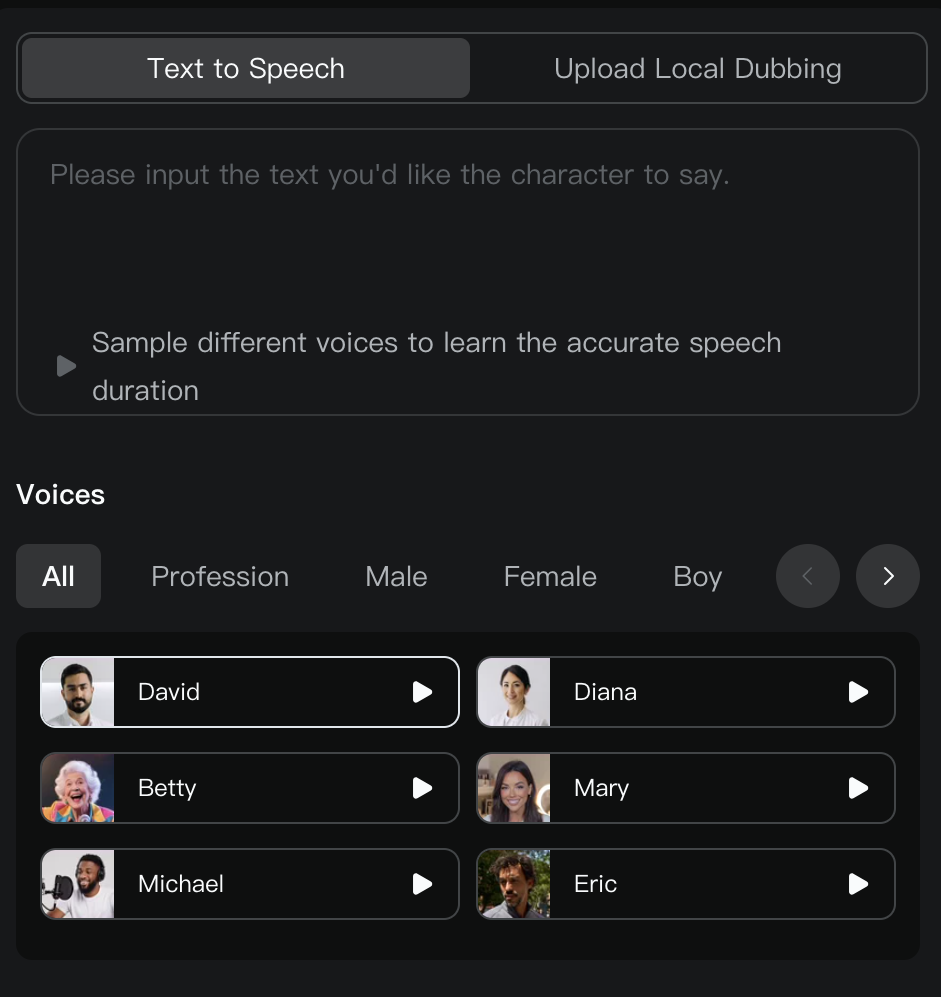
Keep in mind that choosing this option means using an AI voiceover. There are different genders, professions, ages, etc, so you can just pick the one that best suits your avatar.
Use Your Own Audio File
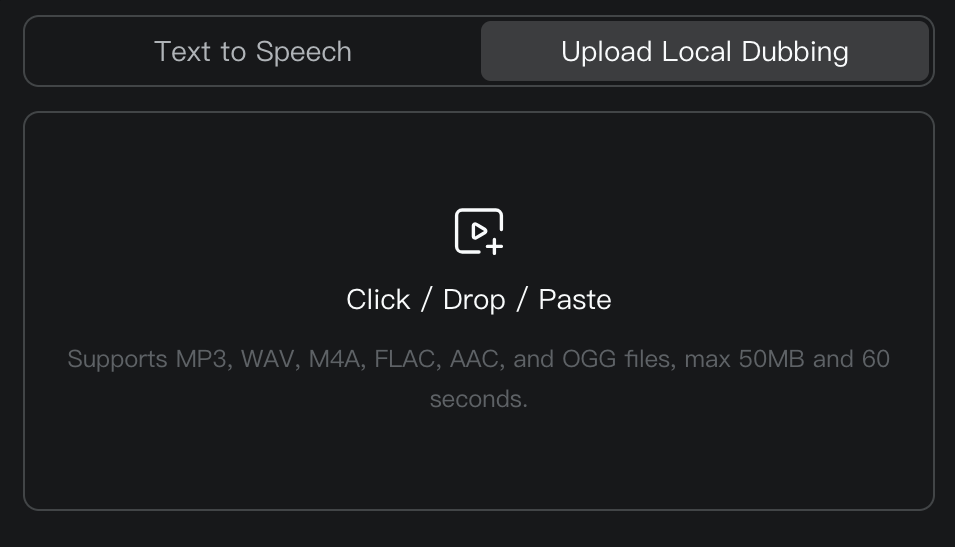
With the ‘Upload Local Dubbing’ option, you can upload an audio recording of yourself or someone else for the avatar’s lip-synced speech. This is ideal if you prefer a more unique and personalized speech performance.
Using Kling AI Lip Sync: A Step-By-Step Guide
Having summed up the options this tool has to offer, let’s move on to the more exciting part of how you can start lip-syncing videos with Kling AI!
Step 1: Open the Kling AI Lip-Sync Tool
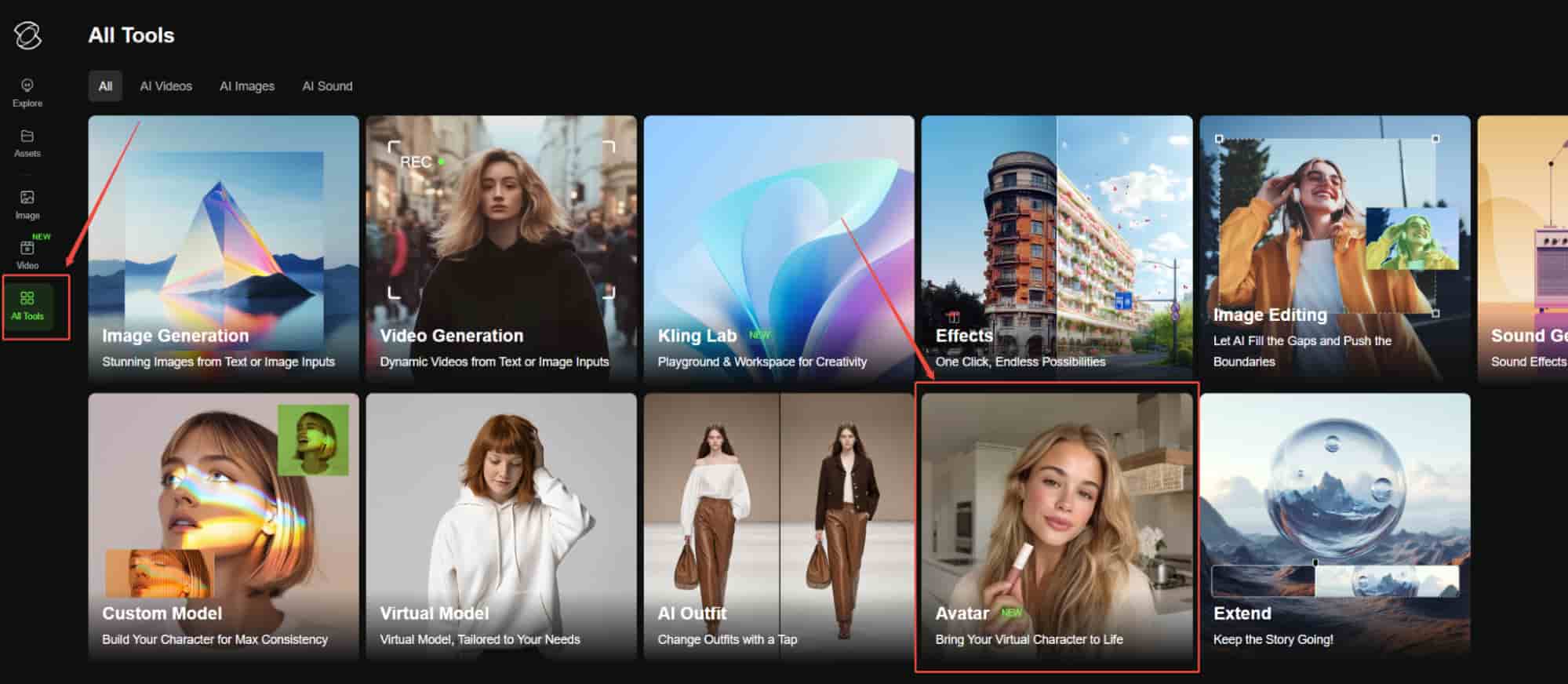
Once you’ve logged into the Kling AI dashboard, look to the sidebar, and click on ‘AI Tools’. From there, scroll down the page, select the ‘Avatar’ tool to access the Lip-Sync feature and get started.
Step 2: Upload an Avatar Video
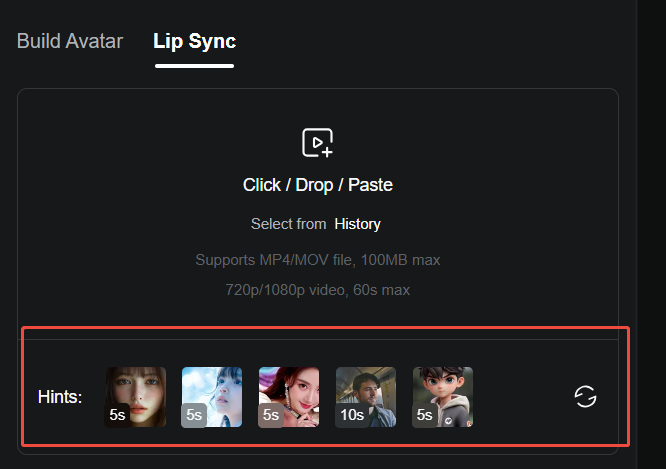
The next step is to upload an avatar video to the Lip Sync tool. If you don’t have a video ready, you can generate one with Kling AI first or select a pre-made video from the Hints section.
Step 3: Input Your Audio
As mentioned before, you can either input your own script via the ‘Text-to-Speech’ option or drag/drop an audio recording file via the ‘Upload Local Dubbing’ option.
Step 4: Lip-Sync Your Video
When you’ve finished setting up, you can proceed to click on the ‘Generate’ button. Kling AI will begin synchronizing your audio and avatar’s lip movements. Within minutes, you can download the final video and share it online with audiences.

How Can Kling AI Lip Sync Be Used?
With Kling AI Lip Sync, creating lifelike avatar videos has never been easier. It streamlines a lot of manual editing work that would typically cost a lot of time, effort, and money. In this sense, there are several ways that you can use this tool:
- Voice Dubbing: Save costs by dubbing marketing/ad videos
- Animations/Games: Produce captivating avatar animations with realistic voices
- Virtual Avatars: Give AI avatars an engaging voice for tutorials/guides/onboarding
- Personalized Video Messages: Create tailored videos to send to clients/customers
- Social Content: Create viral-worthy memes, reels, and TikToks with lifelike voiceovers
Is There Another Alternative for Kling AI Lip Sync?
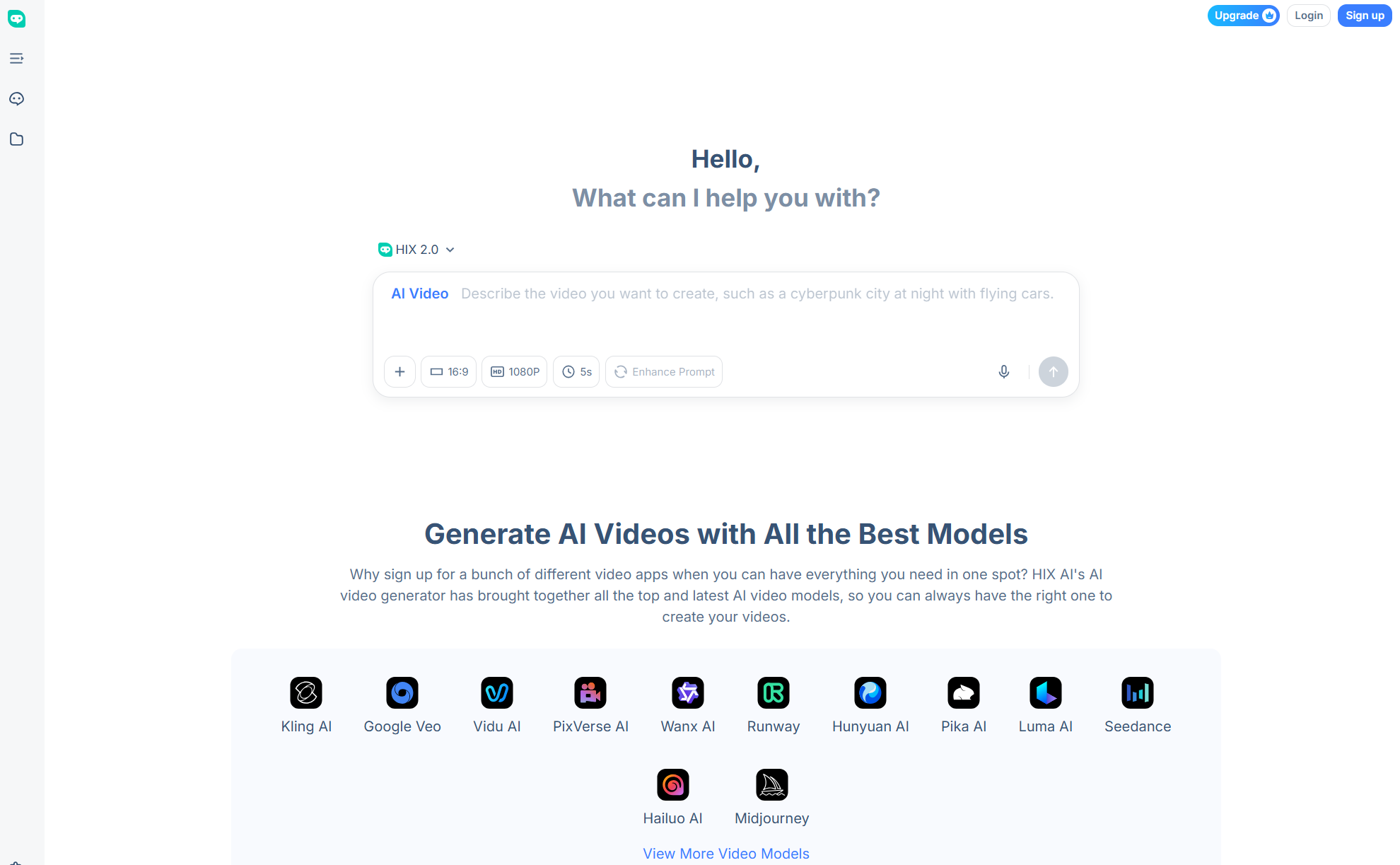
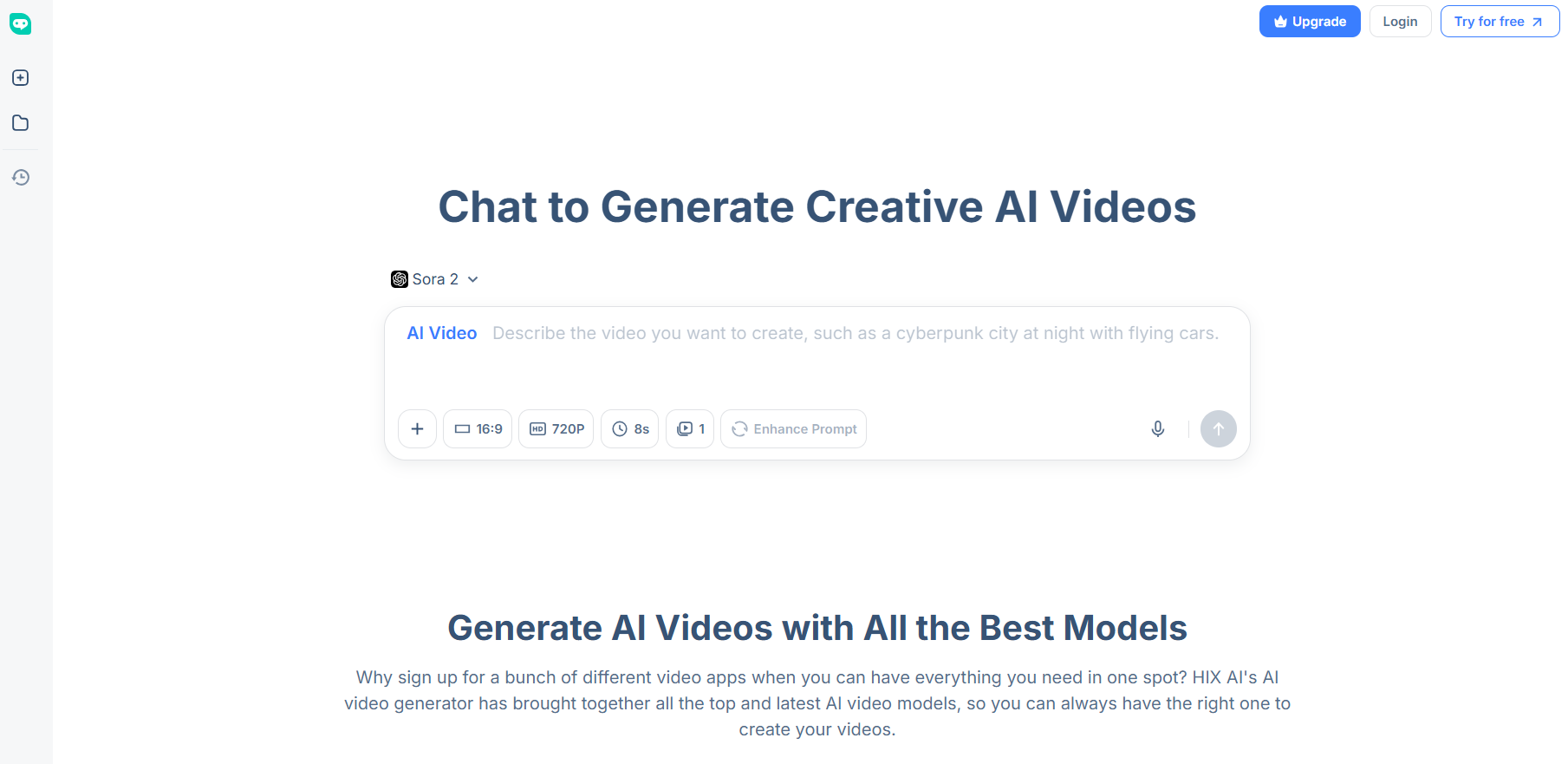
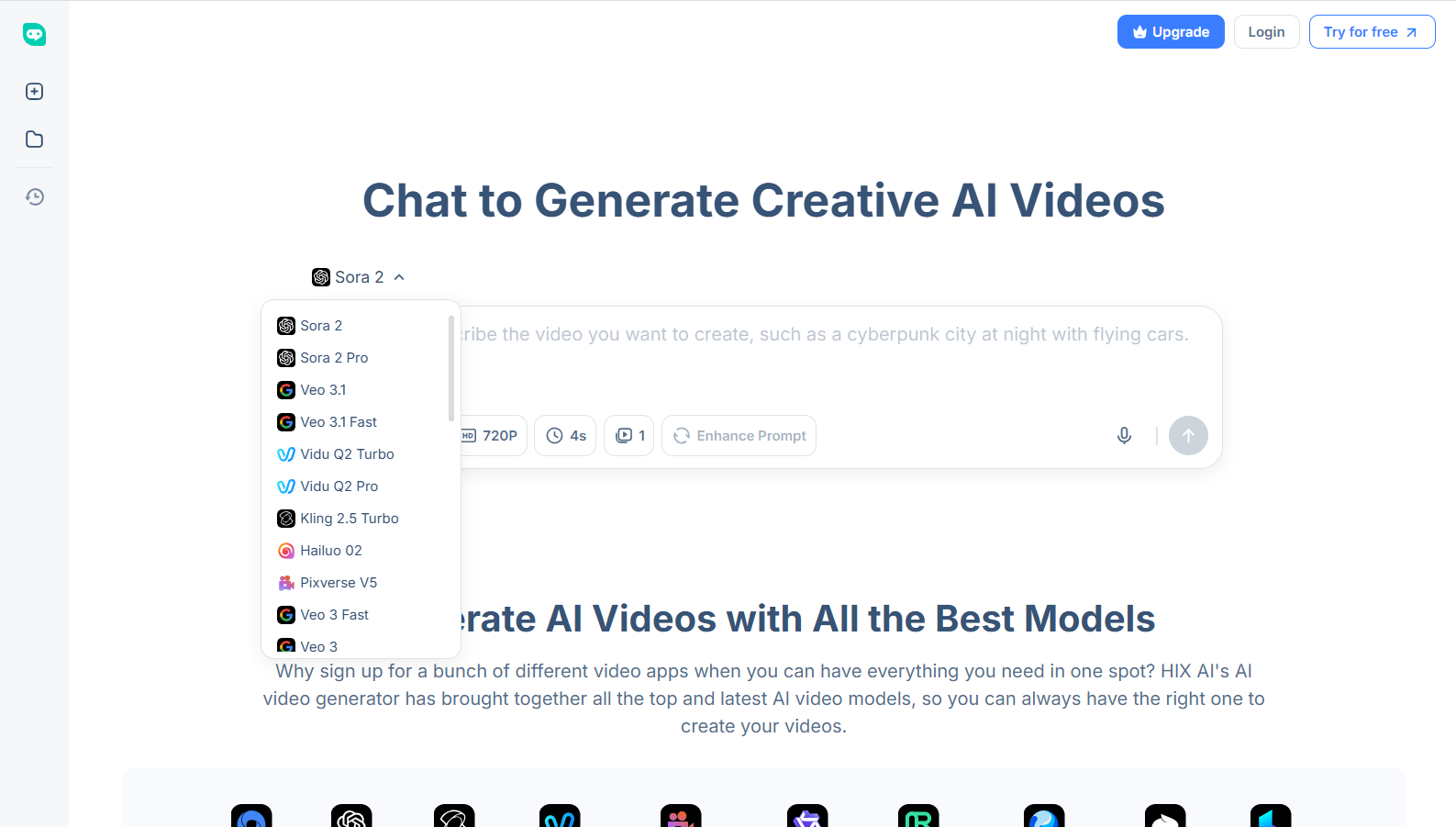
If you find that Kling AI Lip Sync is not a viable option for you, consider generating videos with pre-lip-synced audio via HIX AI video generator.
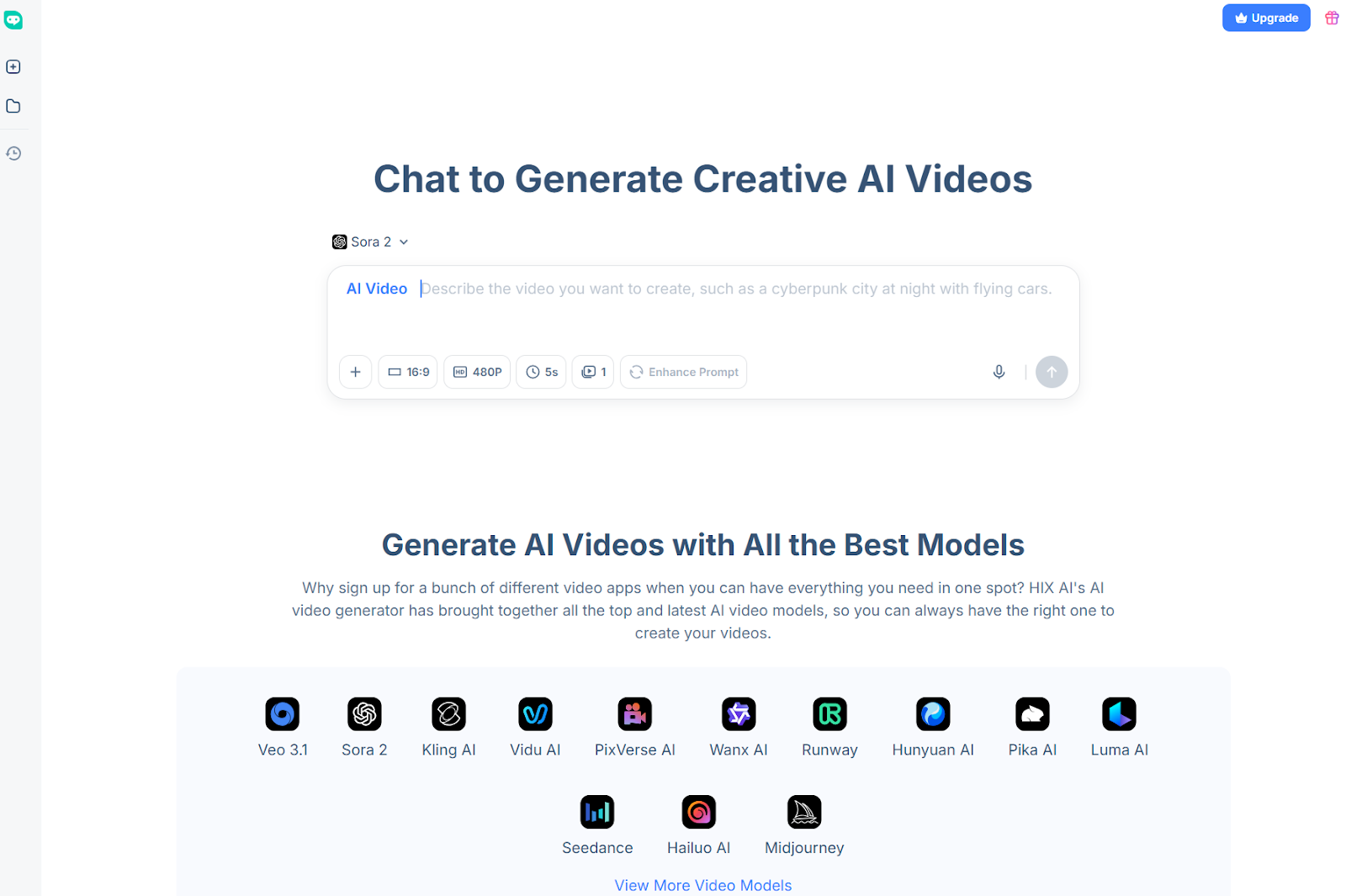
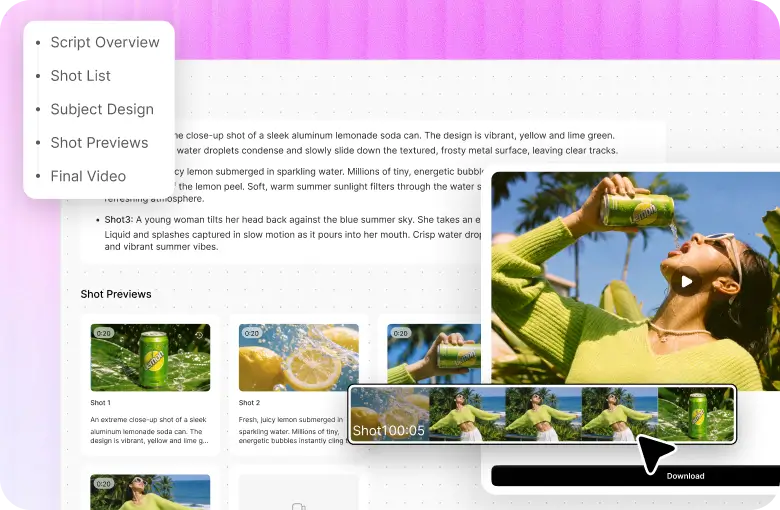
Using this advanced, all-in-one AI video generator, you can access AI video models like Google Veo 3.1 that can produce lifelike avatar videos with natively-generated audio.
And since it can also render videos across multiple aesthetic styles like cinematic film, 3D animation, 2D cartoons, anime, etc, this gives you the range to tackle any creative project.
In addition, HIX AI is integrated with several other options like Sora 2, Runway, PixVerse AI, Hailuo AI, Pika AI, Vidu AI, Luma AI and much more.
Powered by these top-class models, you can go on to freely generate new videos or reimagine existing ones via text to video AI, image to video AI and video to video AI functionalities.
Moreover, if you need to create fun, novelty videos fast, there are 200+ video effects like the AI kissing video generator, AI hug generator, and AI twerk video generator to choose from!
Conclusion
Using the Kling AI Lip Sync tool to create avatar videos with realistic dialogue is simple enough, especially if you follow this detailed guide.
But don’t forget that it’s not the only solution to consider. You can explore HIX AI’s tools and features at no cost via the free trial now. Get started today!
FAQs
What is Kling AI Lip Sync?
Kling AI Lip Sync is a unique tool that automatically matches an avatar’s lip movements to the spoken audio. Instead of using complex editing software, it allows you to instantly bring realism to any character, producing more natural and professional dialogue scenes.
Does Kling AI Lip Sync support videos with multiple characters?
Yes. Kling AI Lip Sync offers character selection that automatically identifies and segments multiple characters in any uploaded video. This enables you to lip-sync audio for each subject across different frames, making it possible to produce natural and realistic scene interactions.
What languages does Kling AI Lip Sync support?
For now, you can only lip-sync audio in Chinese and English. So, if you’re inputting a dialogue script via text-to-speech or uploading an audio recording, make sure it’s in either one of these two languages to get the quality results you want.
Will the AI voiceovers be natural-sounding?
Most of the lip-sync AI voiceovers sound authentic and natural. Feel free to sample the different options until you find the one that sounds best to you. Remember, you can also adjust aspects like emotion and speech rate, which gives you more custom control over the final result.