Are there certain areas in your video that look cut out? Or perhaps you want to repurpose the footage with a different aspect ratio? Either way, Runway’s Expand Video can help.
This nifty tool lets you seamlessly fill in the missing details that would exist beyond the horizontal or vertical edges of your footage without impacting its authenticity or quality.
Not many users are familiar with it, but don’t fret! To help you, I’ve put together a detailed, step-by-step guide on how you can start expanding your videos with Runway today.
How to Use the Expand Video Tool on Runway?
It’s quite simple! Let me break down how to be an Expand Video expert in just a few steps:
Step 1: Start a New Session
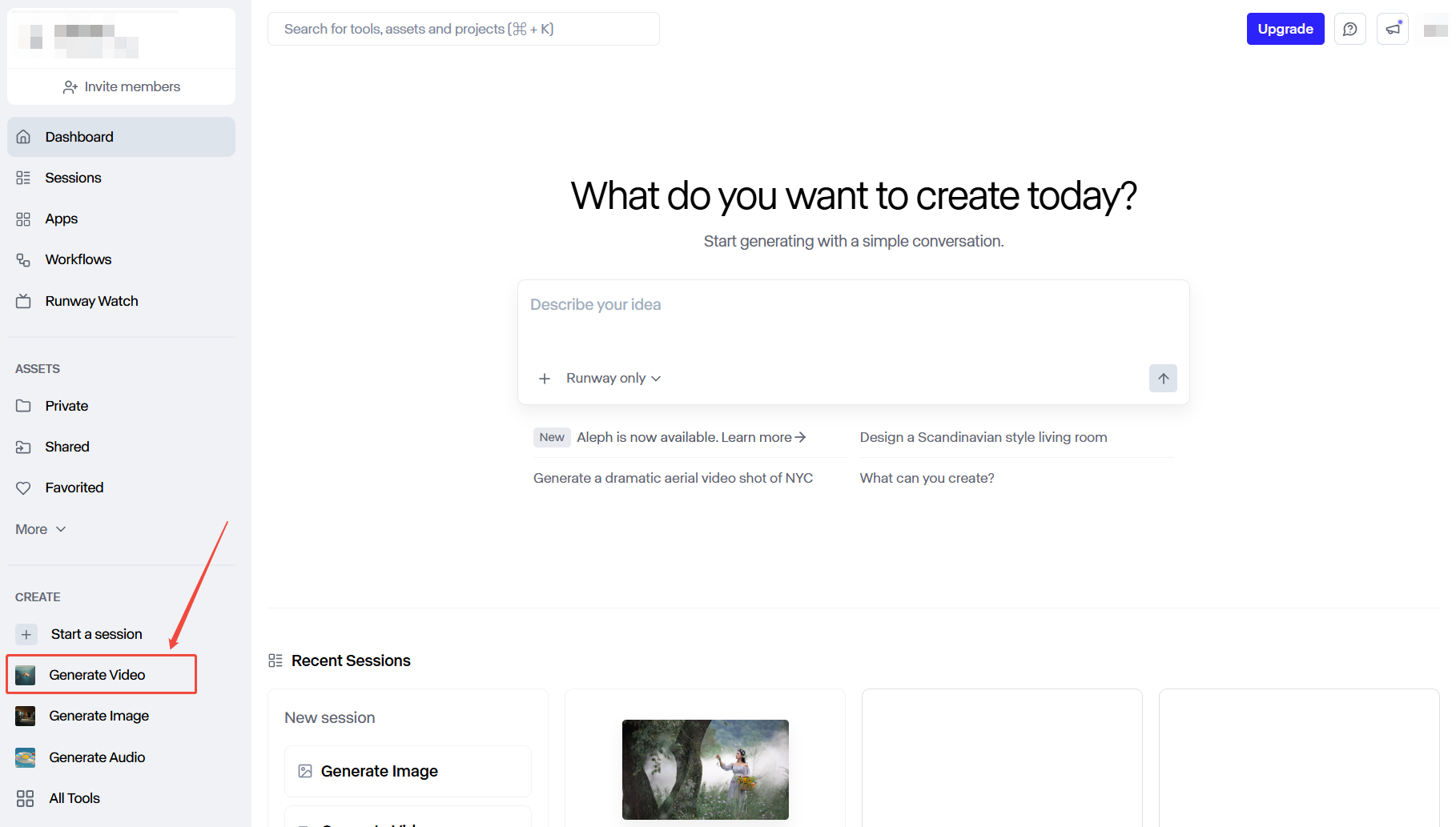
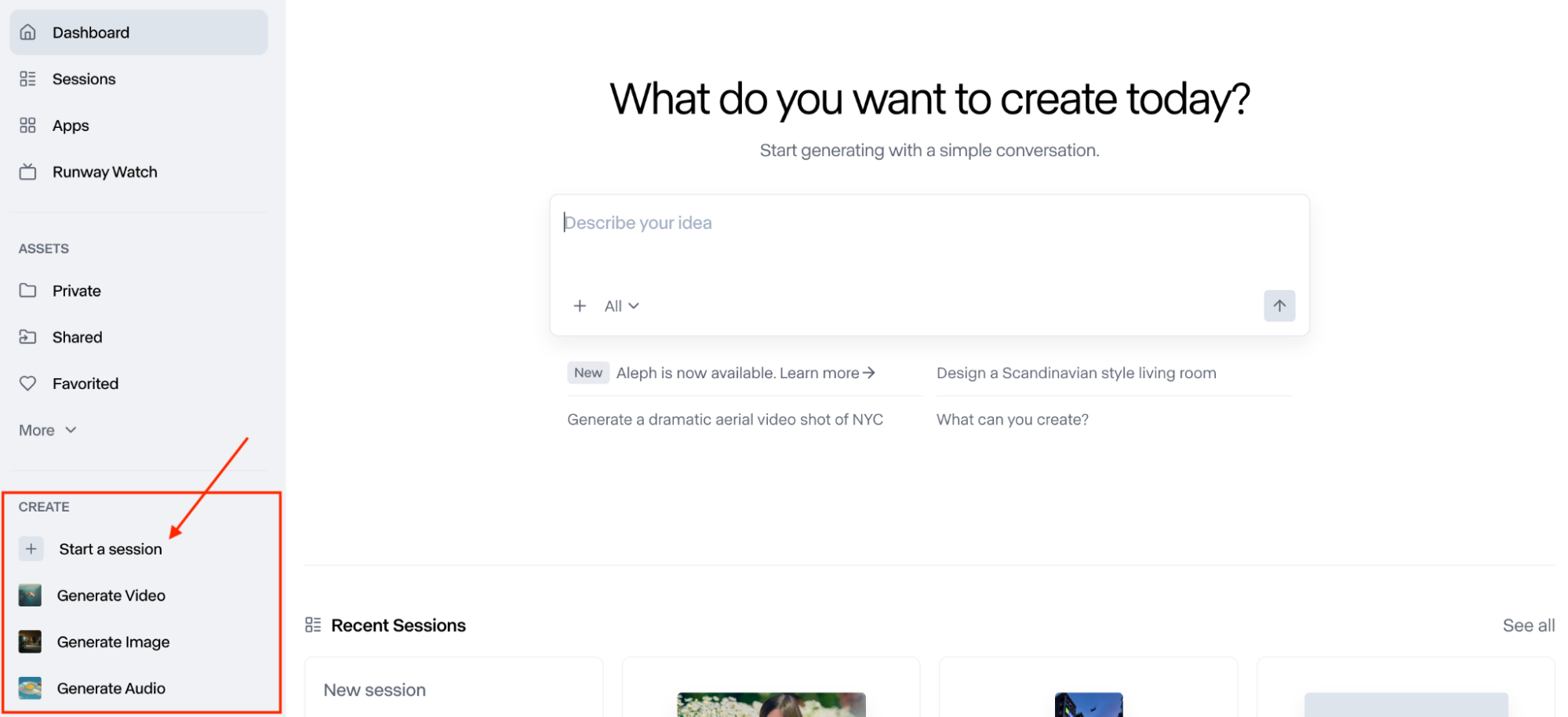
Head to the Runway website and sign in to your account. Once you’re on the user dashboard, look to the sidebar, and click ‘Start a session.’ This will take you to the video generation page.
Step 2: Select the Expand Video Tool
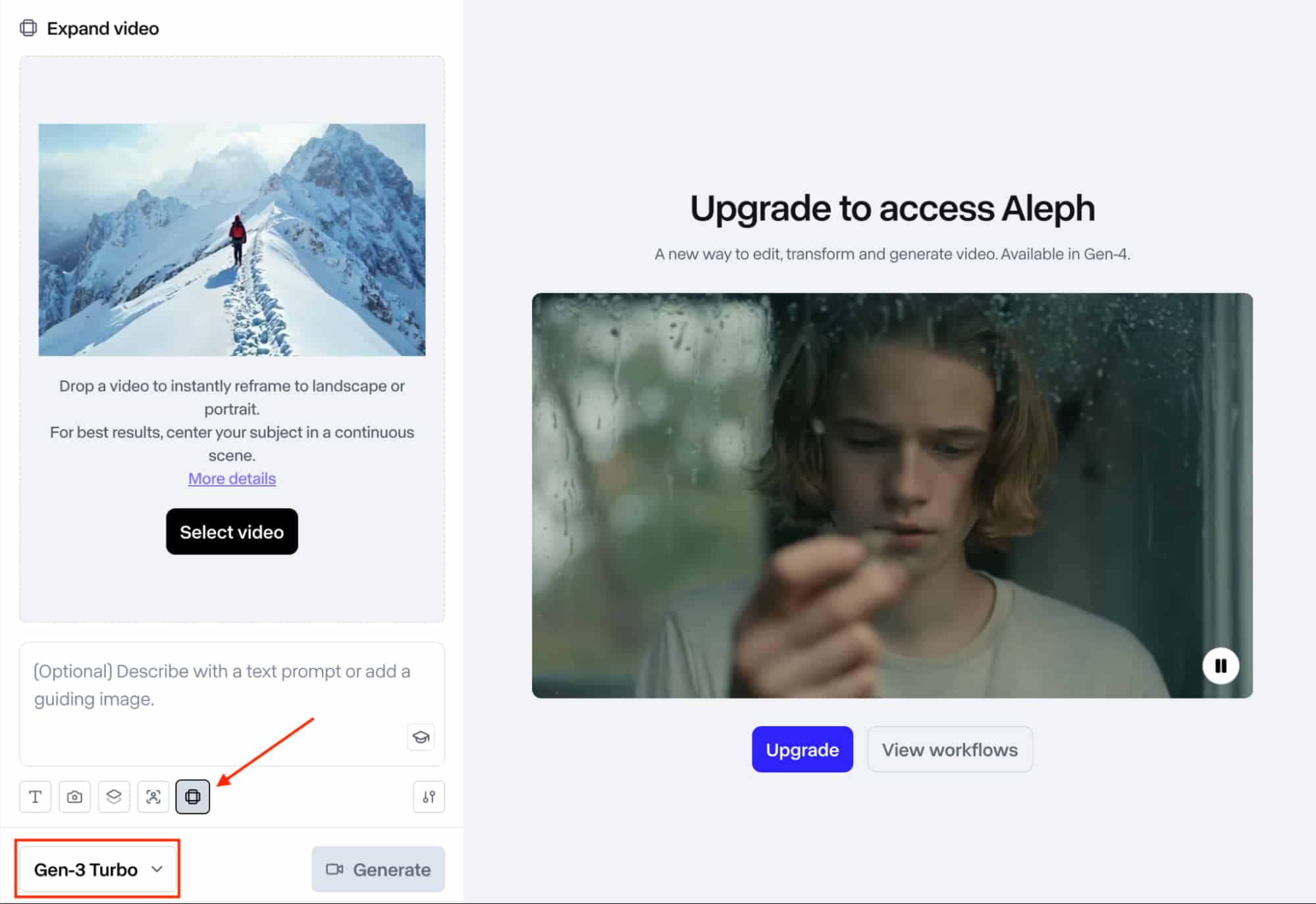
From there, you will need to scroll down to the model selection list and select Gen-3 Turbo. After that, you will see the Expand Video button just above it. Click on it to open the tool.
Step 3: Upload Your Video
You can then select a video from your ‘Assets’ folder or drag/drop a video. Keep in mind that the video must be at least 620x620, with a max file size of 64MB and a max duration of 10 seconds.
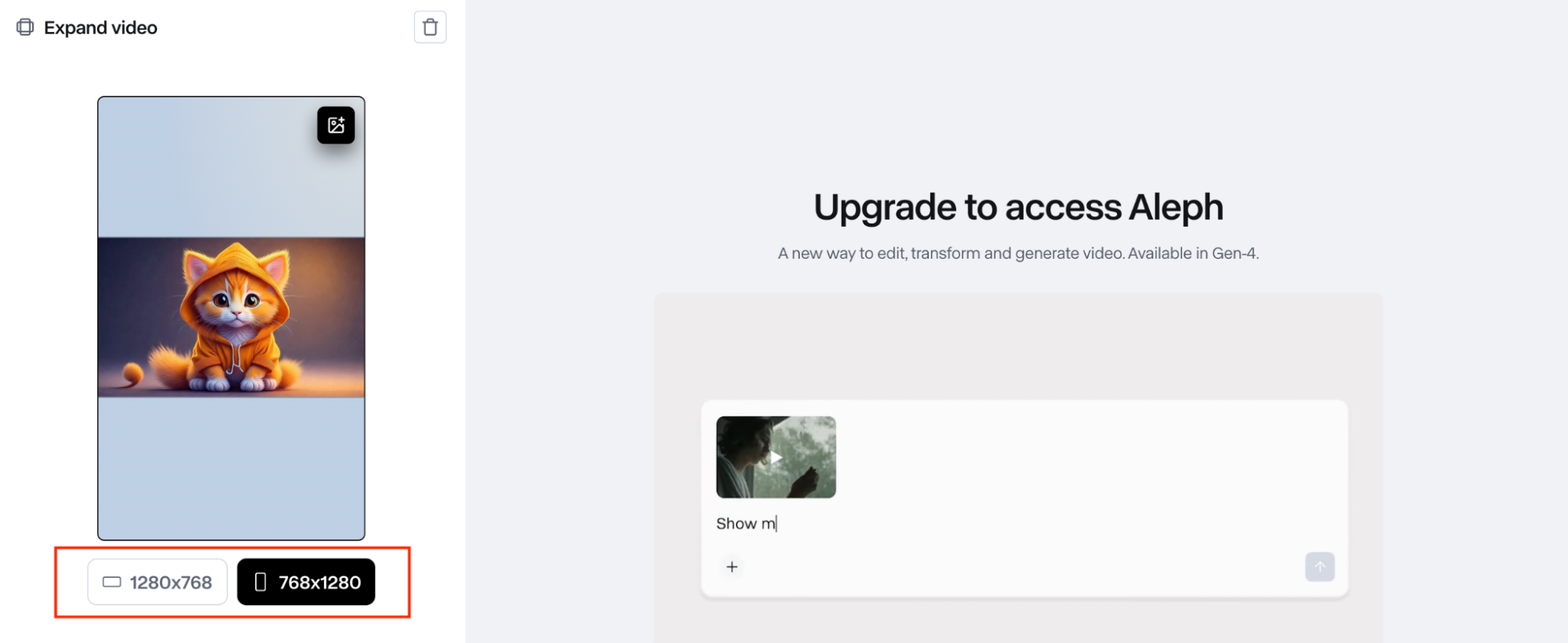
Depending on the type of video you upload, Runway will automatically set the opposite aspect ratio. If it’s a Landscape video, it will be set to Portrait expansion, and vice versa.
Step 4: Input Text Prompt/Add Guiding Image (Optional)
While this is optional, you can input a text prompt to describe what should be in the expanded areas of the video. This helps you customize the final video to fit your precise needs.
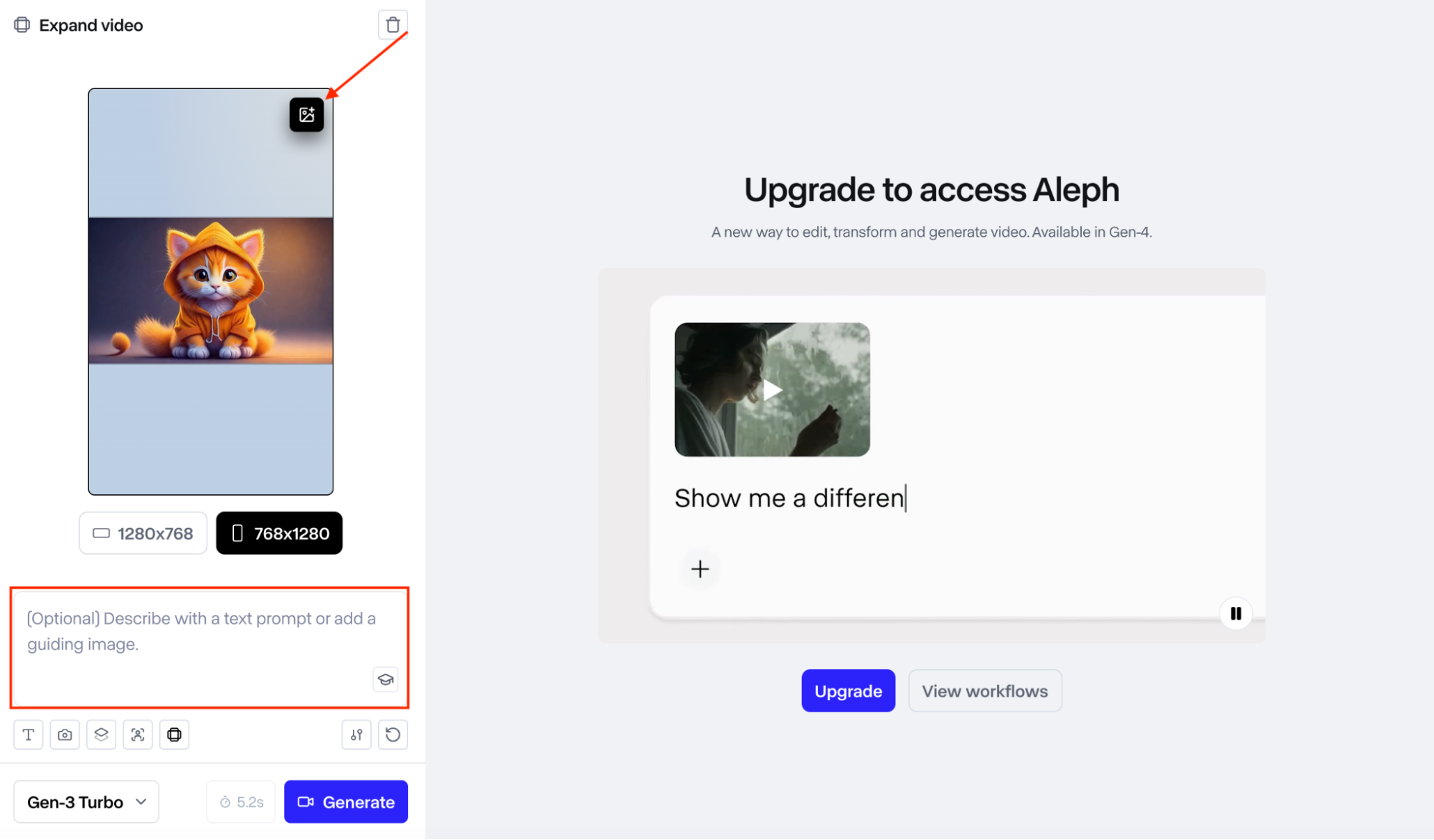
Another option is to upload a guidance image, instead of using a prompt. If you choose this, make sure to use a clear, expanded image of the first video frame for the best results.
Step 5: Expand Your Video & Download
When ready, click ‘Generate’ and Runway will expand your video into a new aspect ratio. You will get to preview the output and can even adjust various settings that include ‘Restyle’ to reimagine the video aesthetic, ‘Extend’ to seamlessly lengthen the scene duration, etc.
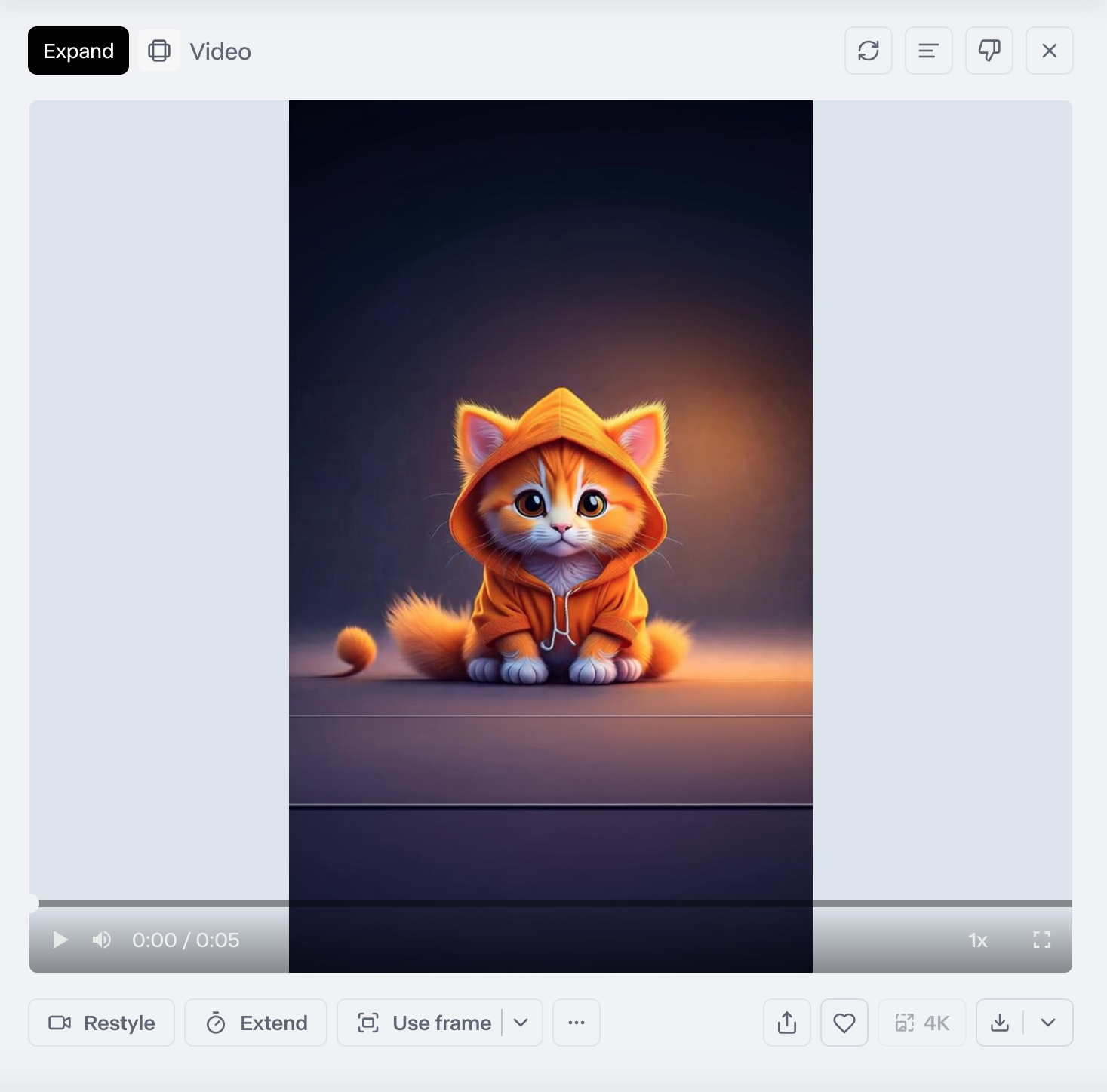
If you’re satisfied and don’t need to make any other changes, you can feel free to save and share the final video.
Top Tips to Consider When Expanding Videos on Runway
If you’re using the Expand Video tool on Runway, there are a few key practices I would suggest that you implement for the best possible results.
Position the Subject at the Center
Always make sure that the main subject is set in the center of the video frame. If they are positioned too far off to one side, this makes it harder for Runway to fill in the missing details naturally. You can fix this issue by cropping the video before uploading it for expansion.
Use a Detailed Prompt/Guidance Image
If you want to get an optimum result, be sure to use a prompt. This way, you can describe exactly what you want to see in the expanded areas. Alternatively, you can upload an expanded image that matches the video's first frame, which tells Runway exactly what to render.
Avoid Overlays or Text in Videos
The presence of text or overlays in video can be problematic for Runway to expand further on. In some cases, you may see unwanted jumps/skips during playback. For the best results, use videos without such elements for seamless results.
Expand the Video More than Once
If the expanded video still feels unconvincing, you can expand it repeatedly to get a better output. This process works because it makes Runway double down on the initial adjustments, making the backdrops, camera movements, etc, look even richer and more natural.
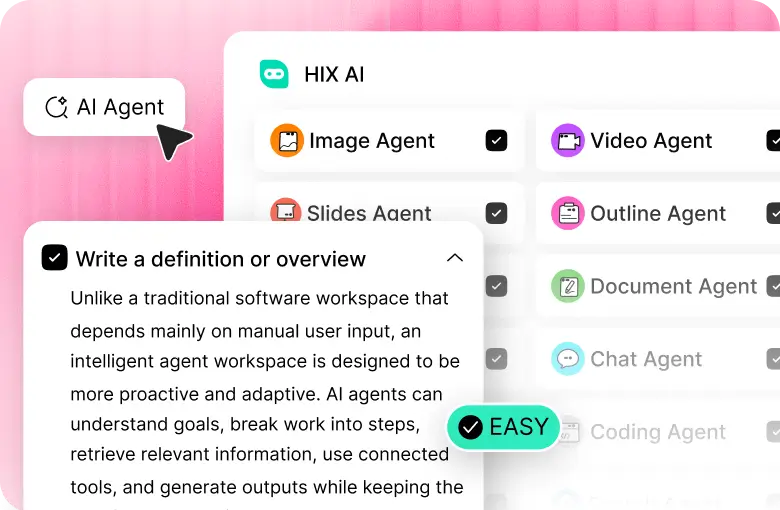
Need an Alternative? Start Generating Videos with HIX AI
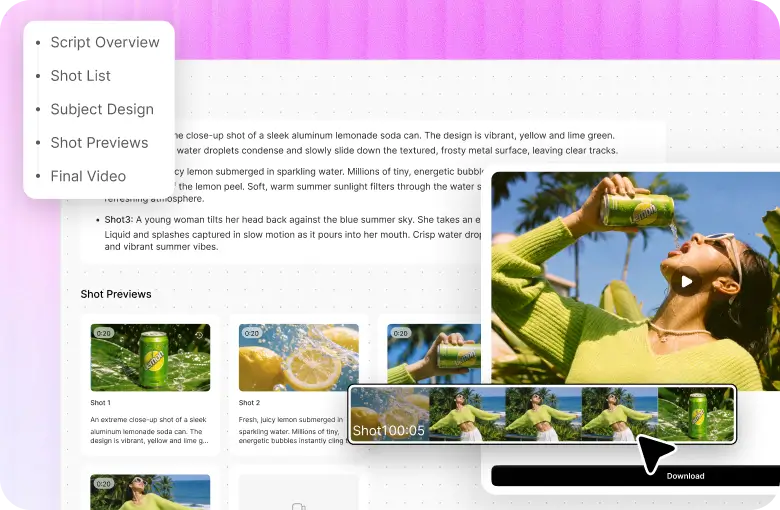
HIX AI video generator is a powerful AI video platform that can produce stunning, high-fidelity outputs in various aspect ratios, be it 16:9, 9:16, 1:1, 4:3, or 3:4. You can generate an AI video directly in your preferred aspect ratio and skip the hassle of expanding your footage.

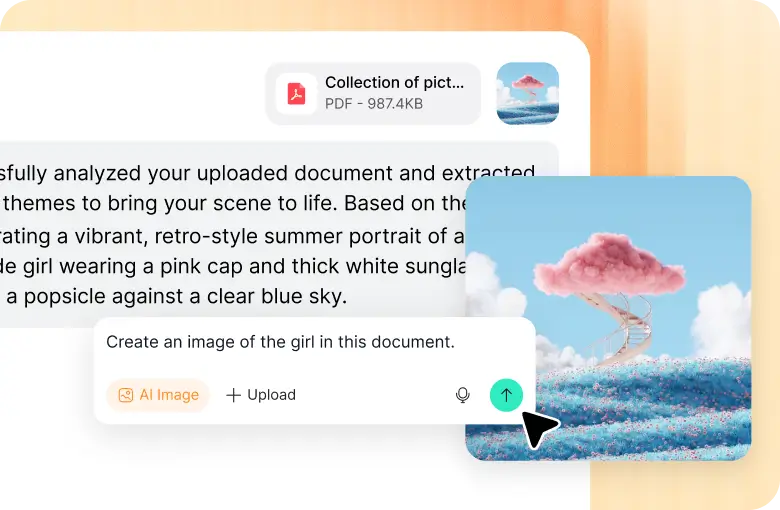
This gives you multiple options that will cater to different platforms like X, TikTok, Instagram, etc. And with its chat interface, you can freely access its text to video AI, image to video AI, and video to video AI capabilities to create new visuals or reimagine existing content.
Whether it is lifelike cinematics, 3D animations, 2D cartoons, or anime, HIX AI can support all of them, giving you more visual style range to cater to any creative project.
But what’s most exciting is how it comes integrated with top-class AI video models like Runway, Sora 2, Google Veo 3.1, PixVerse AI, Pika AI, Vidu AI, Luma AI, etc.
And for the extra cherry on top? It has over 200+ video effects to choose from that you can use to create all kinds of fun visual content. Plus, it has a free trial for new users!
Conclusion
Even if you’re a first-time user, just follow this step-by-step guide to expand videos on Runway like an expert. Also, make sure to always keep the tips I’ve listed here in mind. They will help ensure that you get the quality outputs you want each time.
And whenever you want to generate videos with different aspect ratios, try HIX AI video generator instead! You should have no trouble creating unique and stunning visuals that can be published anywhere.



![Como utilizar o Kling AI para gerar vídeos de qualidade [com imagens]](https://hix.ai/cms/kling_ai_e6d63109e7.jpg)