Does your video seem to end too quickly? Instead of attempting to regenerate the footage, did you know that you can use Runway’s Extend feature to prolong your video content?
Just provide a simple text prompt that indicates what should happen, and by analyzing the last frames of your chosen video, Runway will naturally continue the visual sequence.
Read on, and I will explain exactly how you can start putting this feature to good use today!
How to Extend a Video Using Runway?
Extending a video with Runway can be summed up in just four simple steps:
Step 1: Head to Runway and Select a Generated Video
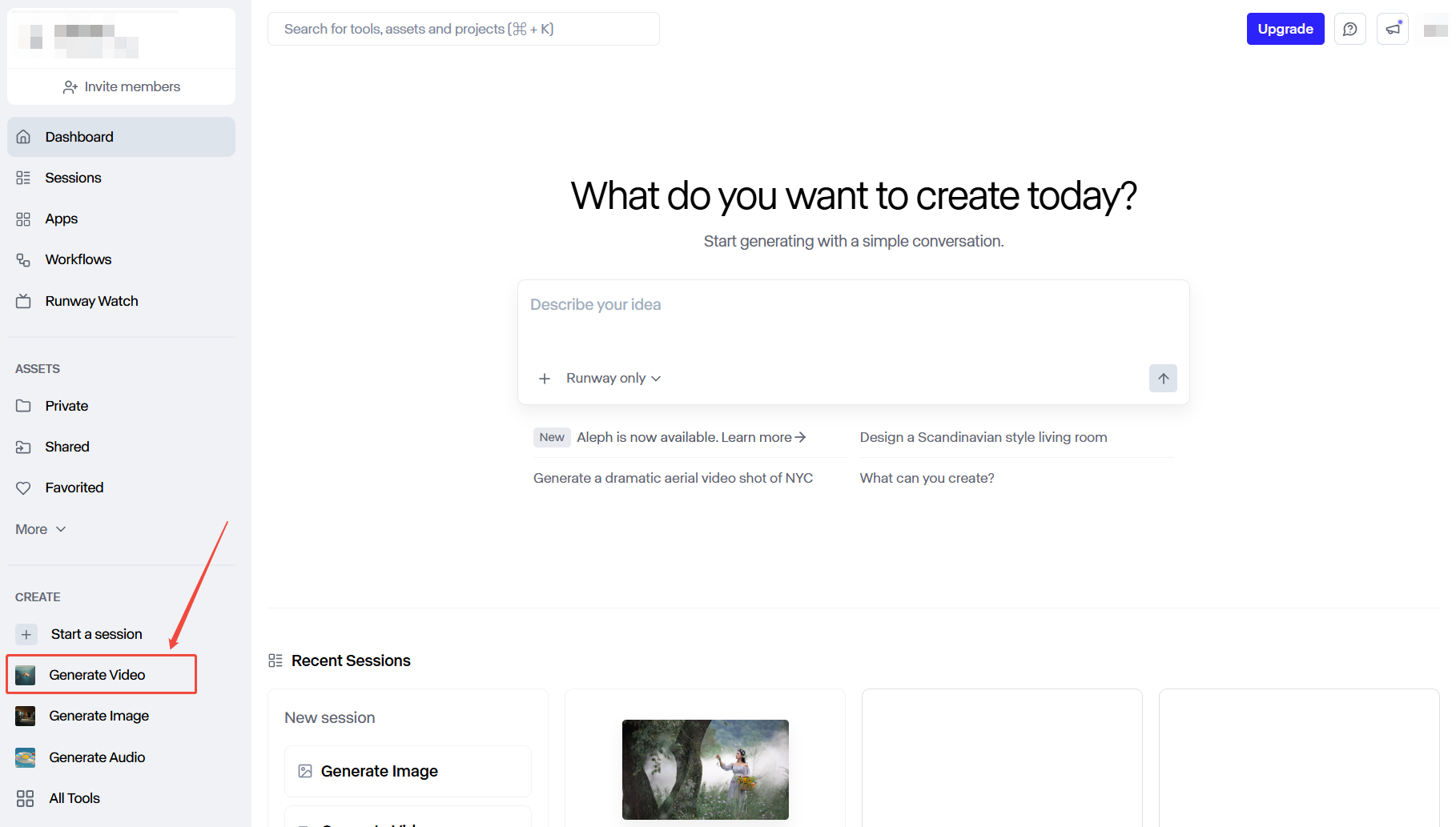
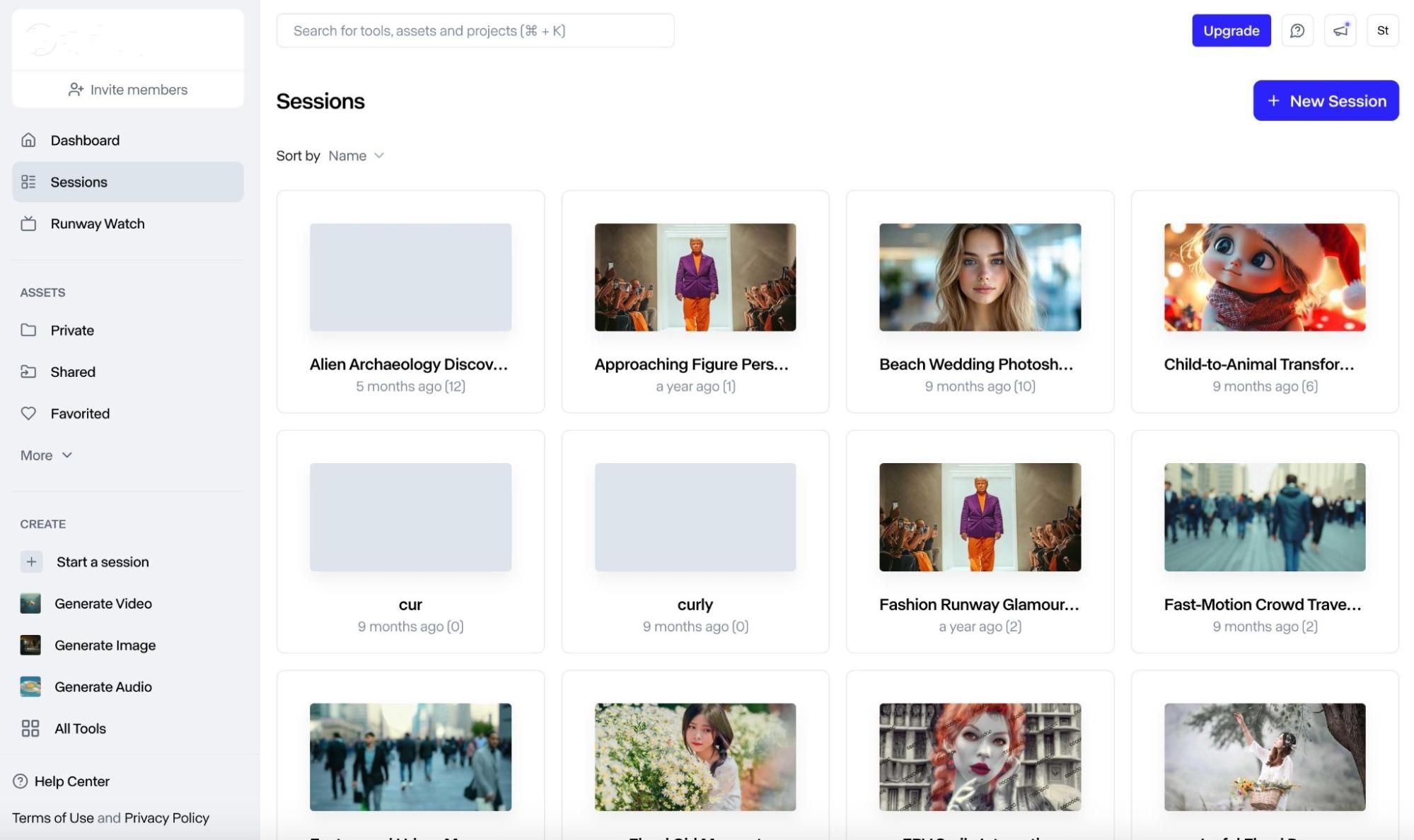
It is important to remember that Runway can only extend videos that it has generated. So, you can start by heading to the Runway's official website, which will take you to the dashboard.
From there, you will need to either generate a new video or choose a completed one from your sessions before you can start extending.
Step 2: Click the Extend Button To Proceed
Just under your chosen video, click the ‘Extend’ button. You will notice that the model used to generate the video can’t be changed, and each one has different time extensions.
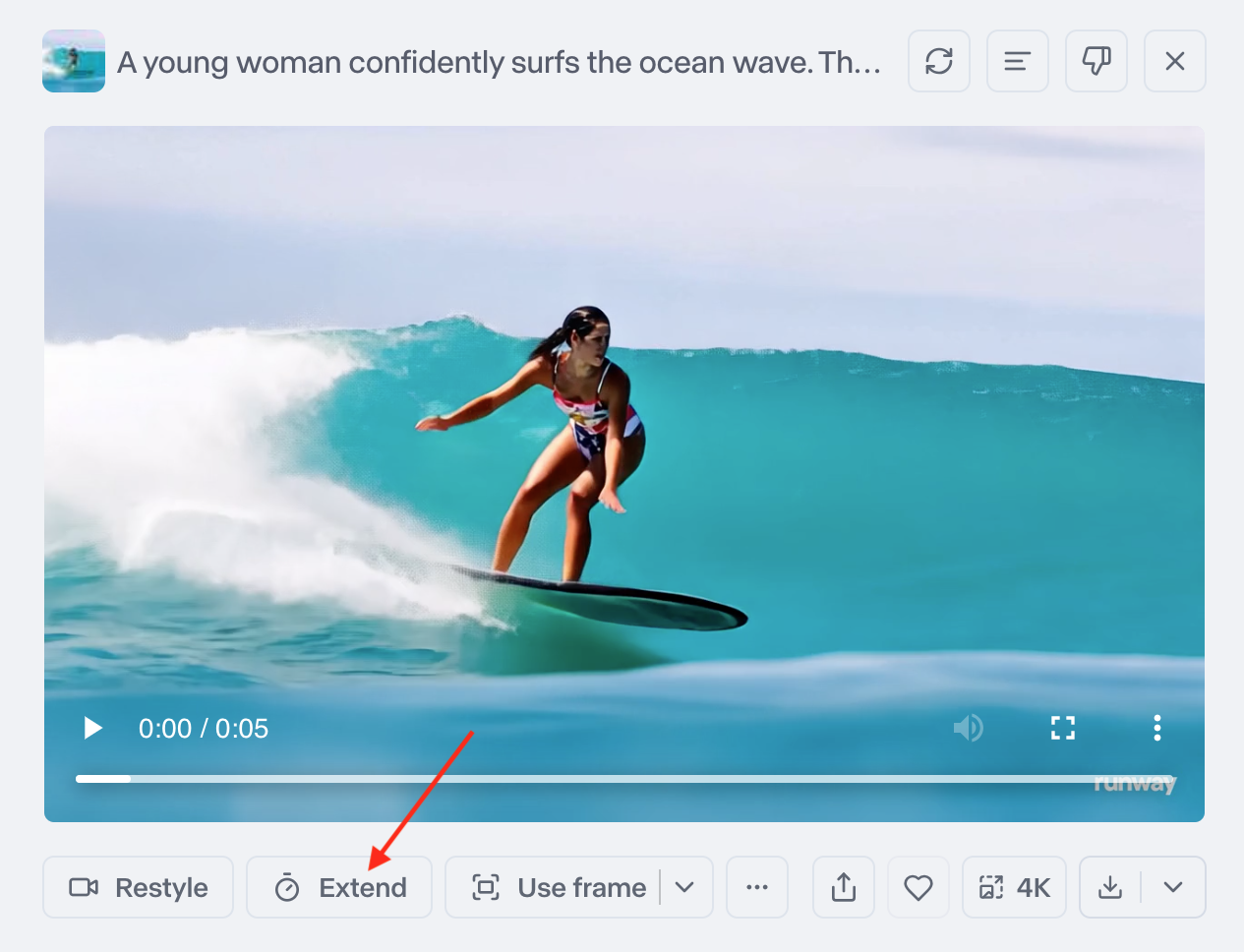
If the video was generated using the Gen-3 Turbo model, this only has an 8-second extension. With Gen-3 Alpha, you can choose between a 5 or a 10-second extension.
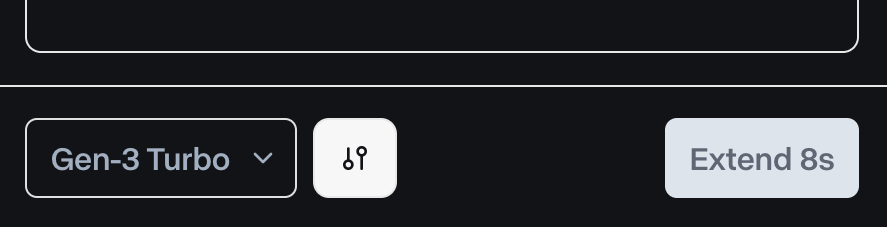
Step 3: Input a Descriptive Prompt (Optional)
Here, you will need to input a text prompt that guides how the scene should be extended. The main focus of your prompt should be on aspects like camera, character, or scene.
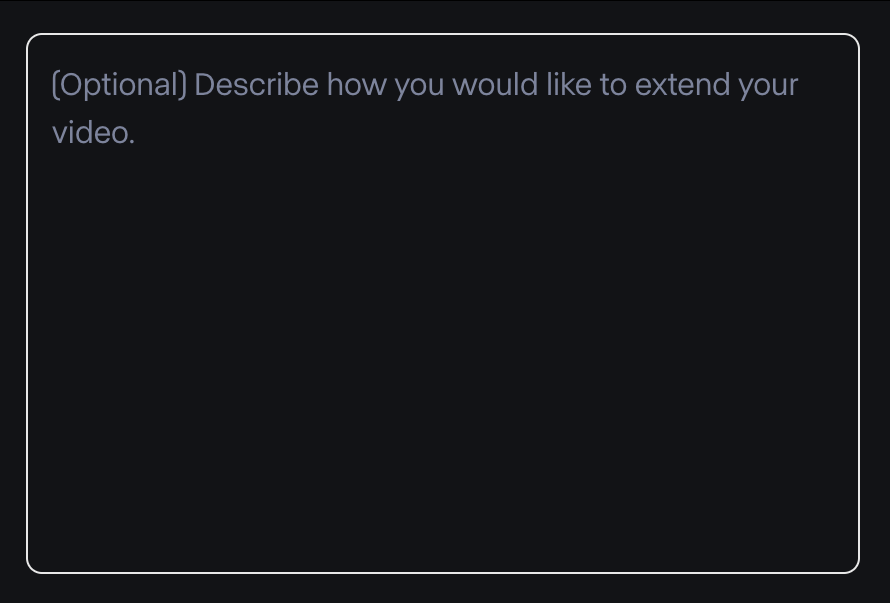
Keep in mind, this step is optional. If you don’t input a prompt, then Runway will automatically extend the scene, based on the last frame. But this can lead to unpredictable results.
Step 4: Download the Extended Video
When ready, click the Extend button and be patient while Runway processes your request. Feel free to review the longer version of your video before downloading/sharing it online.
What Are the Benefits of Extending a Video?
Extending a video can cater well to several use cases, such as:
- Seamlessly Loop Scenes: Create smooth video loops for use in ambient backgrounds or live-streams.
- Outpaint Limited Footage: Naturally add new characters, objects, and elements that weren’t in the original scene.
- Richer Visual Narratives: Provide more visual context and depth with longer videos to better captivate your audiences.
- Meet Duration Requirements: Make longer videos to suit the duration rules set across various platforms.
- Multiple Video Variations: Produce different scenes with separate storytelling from a single source video.
Best Practices When Extending Videos With Runway
Want to maximize Runway’s Extend video feature? Follow these key tips for quality results:
Precise Prompt Engineering
Always input a text prompt for less randomized outputs. Focus on the camera control, character actions, and/or scene movements you want to see happen for a natural, flowing narrative.
Prepare Multiple Prompt Variations
Extending a video multiple times? Always prepare the prompts for different sections beforehand. You will have a better understanding of the scene direction for more satisfying results.
Select the Right Runway Model
Video models can’t be changed before an extension. Choose Gen-3 Alpha to repeatedly extend videos up to 3 times for a max of 40 seconds or Gen-3 Turbo for up to a max of 34 seconds if your original video was 10-second long.

Keep Track of Your Credits
Not sure if the extended video will be good? Keep track of your credit consumption to ensure you have enough for multiple reiterations. If you don't, purchase additional video credits beforehand.
Conclusion
Take your video editing game up a notch by creating longer visual narratives with Runway’s Extend video feature! Using the step-by-step instructions I have provided, you can naturally stitch on new matching footage that maintains style consistency from start to finish.
Try using it now to make awkward and jarring scene cuts a thing of the past!



![Como utilizar o Kling AI para gerar vídeos de qualidade [com imagens]](https://hix.ai/cms/kling_ai_e6d63109e7.jpg)