We can all agree that low-res videos are always frustrating to deal with, right? So, what do you do if you generate a video with Runway and the output quality is unsatisfying? You upscale it!
It makes your videos clearer, sharper, and more detailed almost instantly. Luckily, using this feature on Runway only takes a few steps, and I’m here to show you exactly how to go about it.
But, if you would prefer an alternative, I will also touch on what makes HIX AI the perfect go-to.
How to Upscale Videos in Runway
Improving video quality with Runway’s upscale feature is plain sailing. After all, there is no manual editing involved! Even as a first-time user, all you need to do is follow the steps below:
Step 1: Generate a Video with Runway
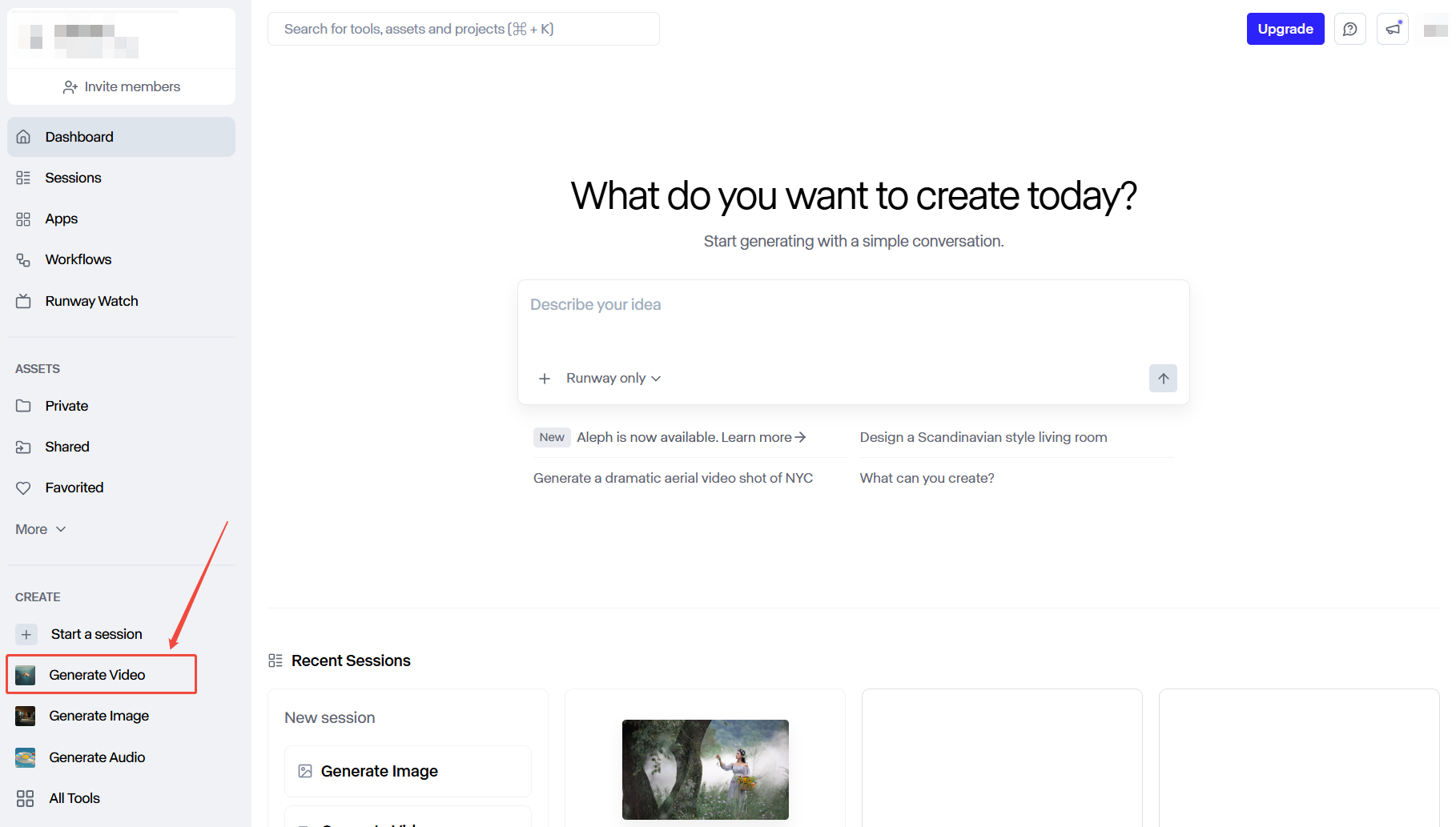
Head to the Runway website and sign in. Once you’re on the Runway dashboard, create a new session and generate a video or choose an already completed video from your ‘Assets’ folder.
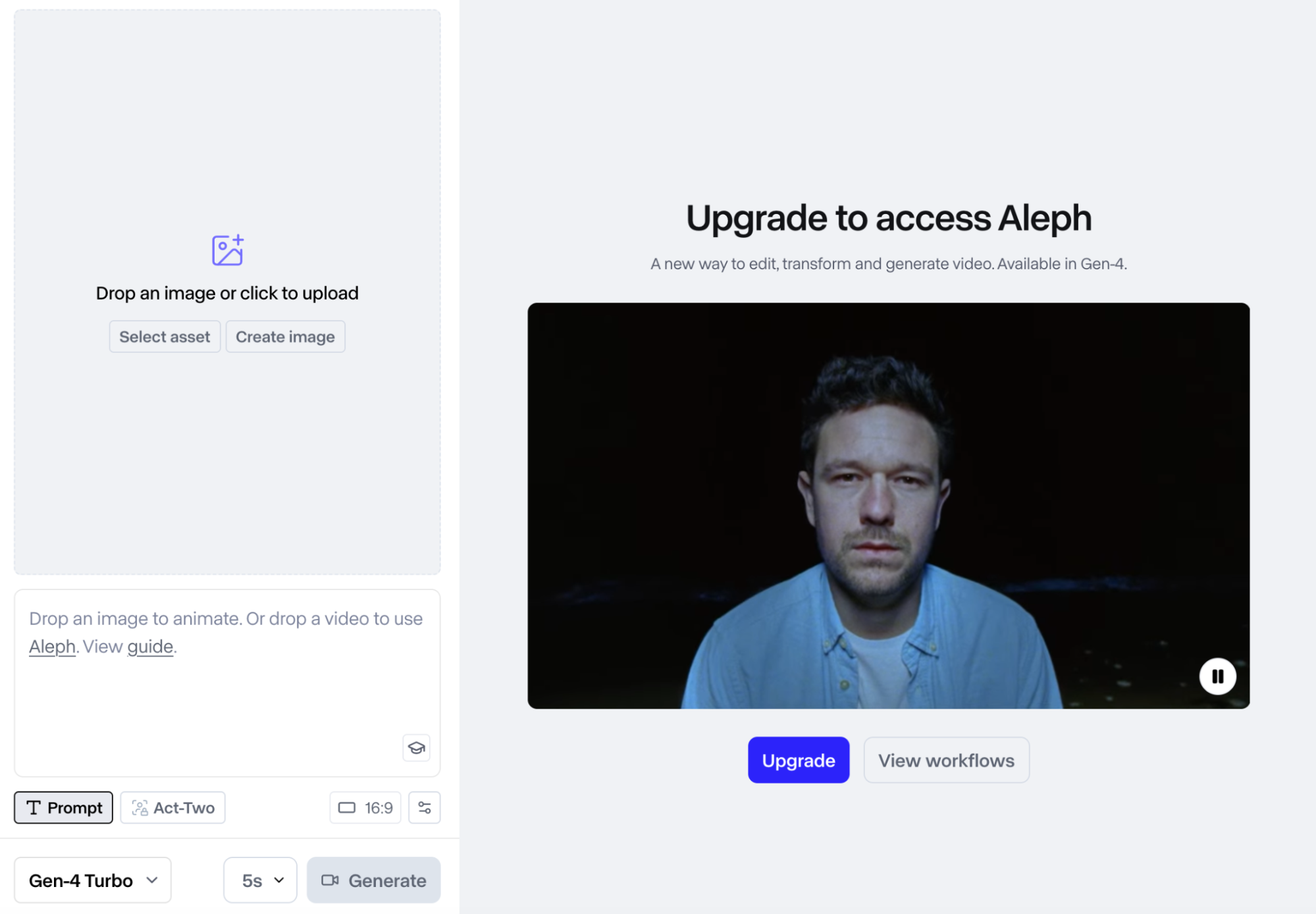
This is because its upscale feature only works with Runway-generated videos. So, it can’t be used on existing footage that has been created or uploaded from elsewhere.
Step 2: Click the Actions Menu
Just under your Runway-generated video, you will see the [...] button, which opens the Actions menu. From there, scroll down and click ‘Upscale to 4K’ or use the 4K button in the corner.
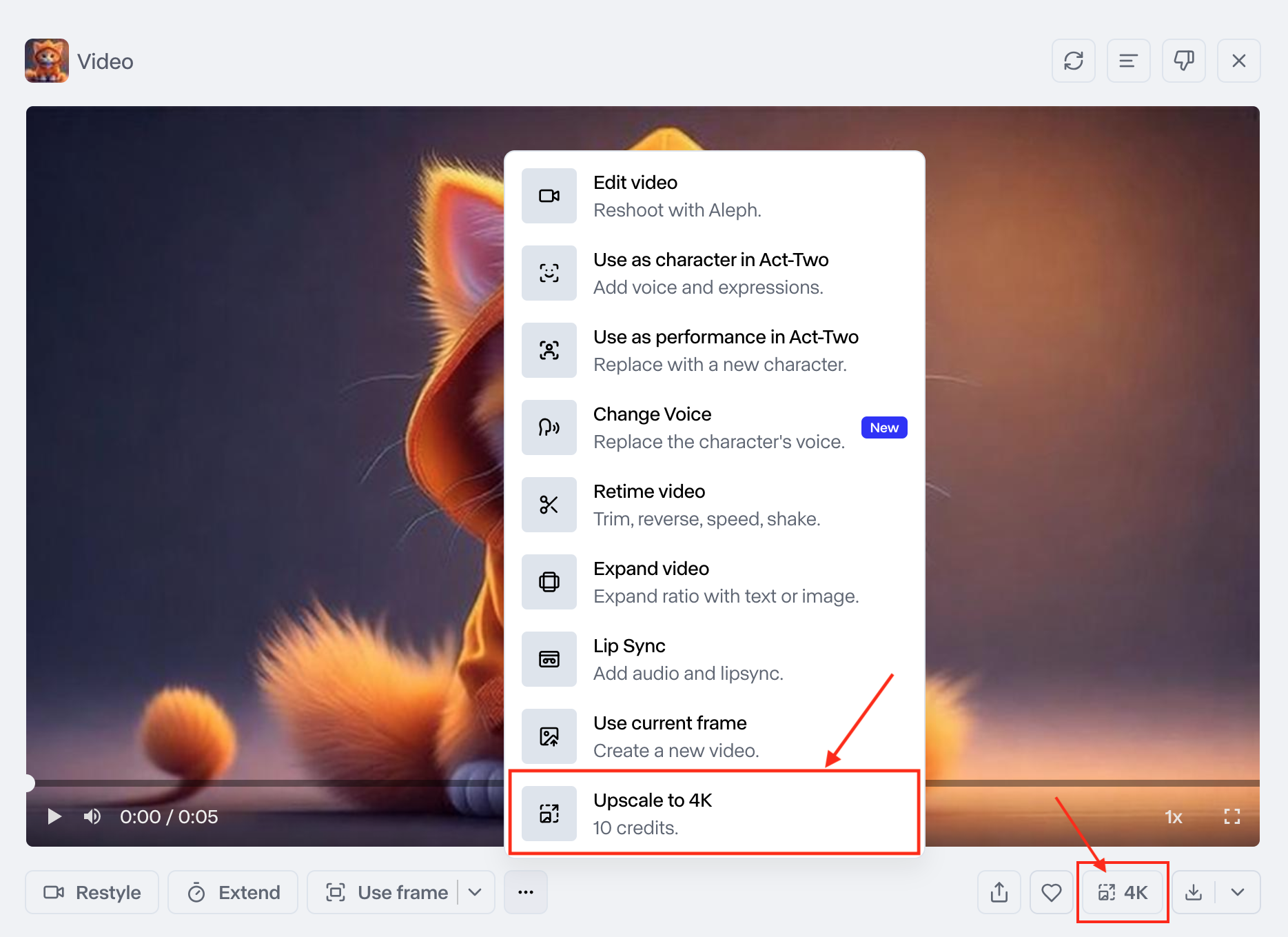
Step 3: Upscale Your Generated Video
Once you click on the ‘Upscale to 4K’ button, Runway will automatically start to enhance the level of clarity, sharpness, and detail of your footage.
The amount of time it takes will typically vary depending on the video length and server demand. Once it’s ready, you can preview the output and freely download it as a video or GIF.
Why Consider an Alternative to Runway’s Video Upscaler?
As convenient as Runway’s upscale feature can be, it isn’t faultless. I can list a few key reasons why choosing an alternative would be better, especially if you need to upscale videos frequently.
Supports up to 4K Resolution Max
Runway’s video upscaler only supports up to 4K resolution at best. For example, if you want to upscale to ultra-HD resolutions like 8K, then you will need a more sophisticated tool.
Restricted to Runway Videos Only
You can only upscale Runway-generated videos. This can be very inconvenient, particularly if you have limited credits or simply need to upscale low-res footage from elsewhere.
Limited Enhancement Capabilities
Runway handles low-to-moderate upscaling at best. It’s not equipped for upscaling heavily pixelated or blurry videos, especially since it offers no manual editing controls.
Upscaling Not Available on Free Plan
Runway doesn’t offer its upscaling feature on the free plan. To access it, you will have to subscribe to a premium-tier plan, which doesn’t help budget-limited users.
What’s the Best Alternative to Runway’s Upscaler?
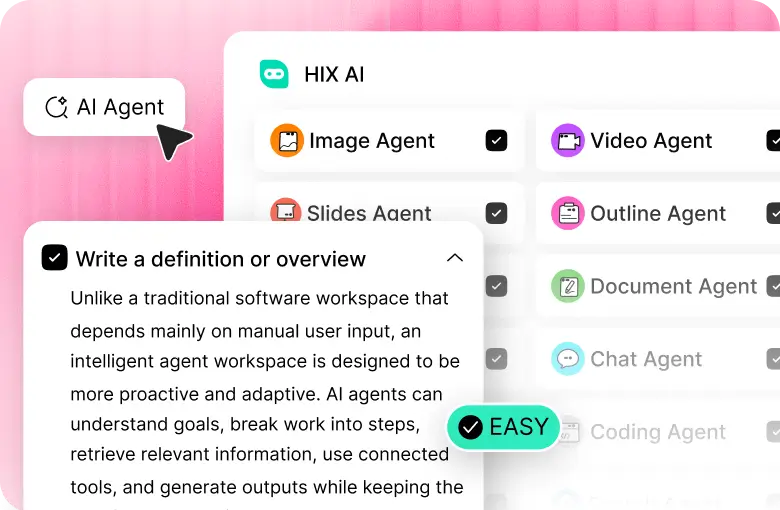
If the idea of upscaling videos with Runway is not to your liking, then I’m confident you will be better suited to using HIX AI instead.
With this powerful, all-in-one AI video generator, you can produce crisp, high-resolution footage with stunning detail. And similar to Runway, HIX AI also has a built-in video upscaling feature.
But the difference is that with HIX AI, you have more resolution options. What’s more? It does a much more effective and sophisticated job of improving the quality of your low-res footage.
Just follow these detailed steps to get started:
Step 1: Generate a Video with HIX AI
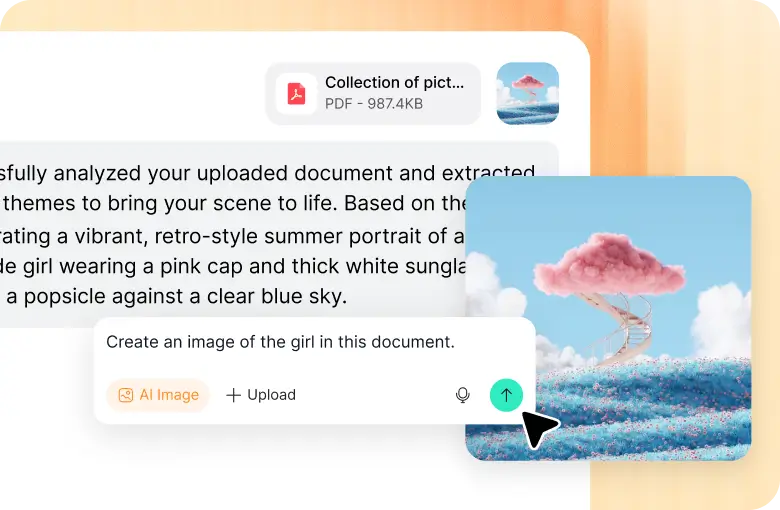
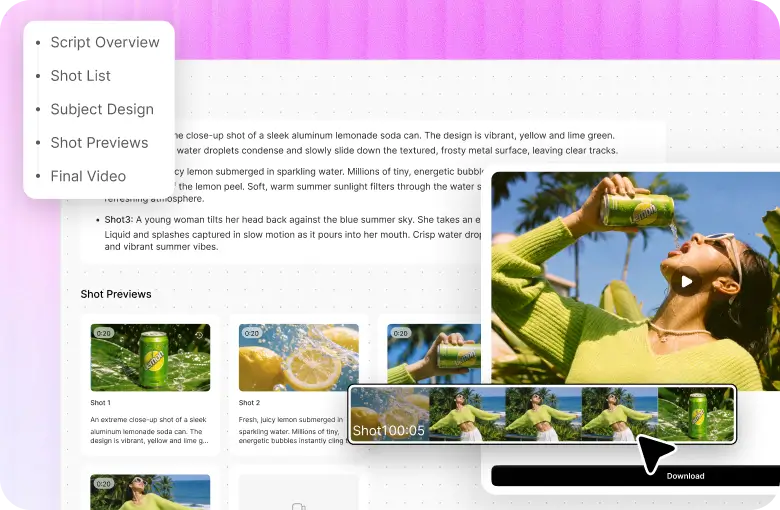
Sign in to your HIX AI account and head over to the AI video generator. You can access text to video or image to video capabilities, with different top-tier AI models available to choose from. After that, input a descriptive prompt, and proceed to generate your video.

Step 2: Upscale Your Generated Video
Once generated, you will see the Upscale button just above the video preview. Click it and choose the resolution you want to improve the quality of your video. Options include 2x, 4x, HD or 4K.
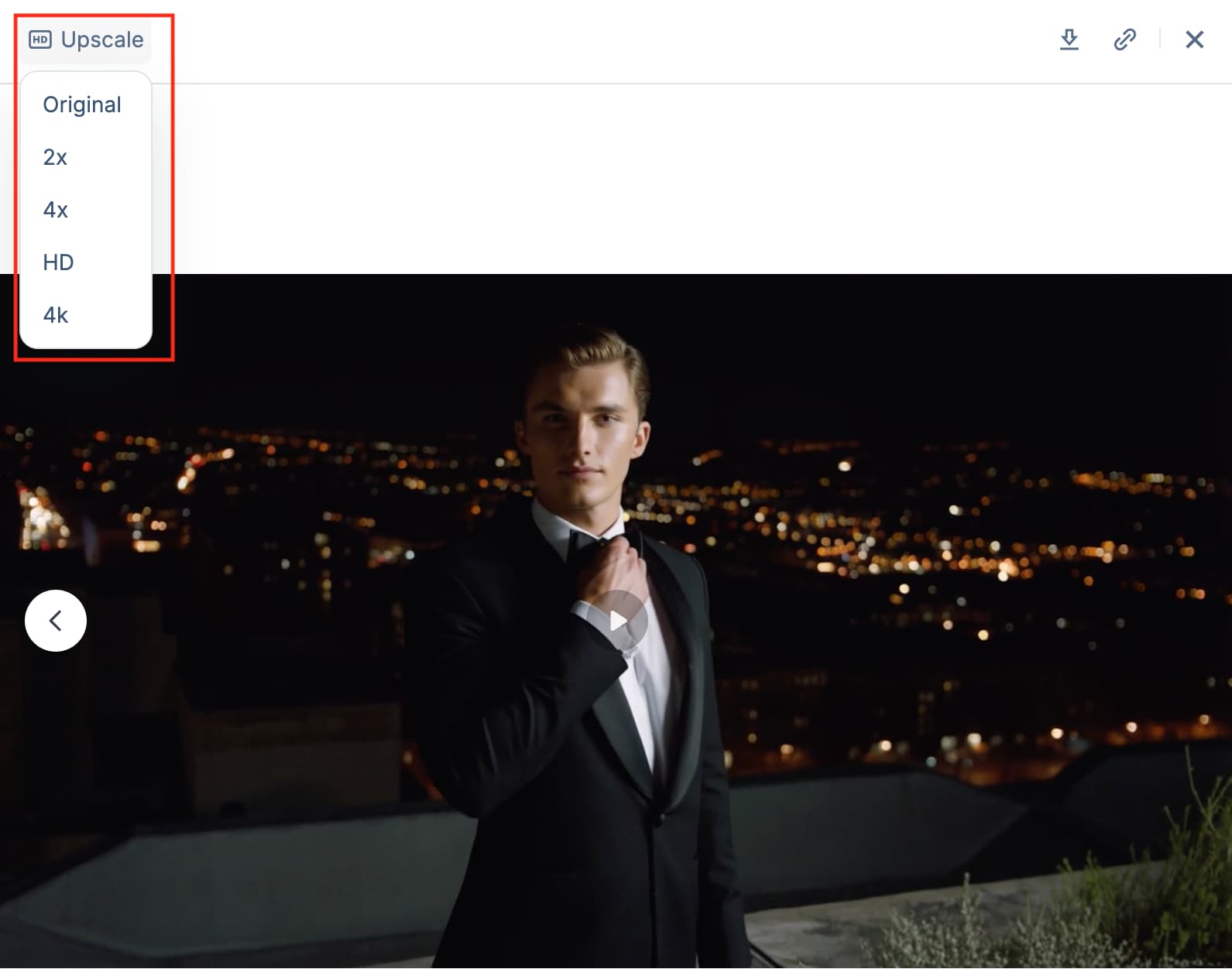
Step 3: Download Your Upscaled Video
Within a few minutes, your upscaled video will be ready for preview. If you’re satisfied with the higher-res output, feel free to download it and/or share it with your audience.
What Are the Other Key Highlights of HIX AI?
Aside from video upscaling, HIX AI also boasts a wide range of capabilities that can streamline your video creation workflow. So, let me quickly touch on some of its core features below:
- Multiple AI Video Models: Integrated with the latest, industry-leading video models
- Text to Video AI: Generate stunning videos using simple text prompts
- Image to Video AI: Convert static images to cinematic-level videos
- Video to Video AI: Reimagine existing footage in any new visual style
- 200+ AI Video Effects: Instantly transform images into fun, viral-worthy videos
And the most enticing thing about HIX AI? As a first-time user, you’ll be glad to hear that it comes with a free trial plan, so you can explore all it has to offer about AI video generation!
Conclusion
Next time you use Runway to generate a video, just follow the steps I have laid out to use its upscaling feature if you’re unhappy with the resolution. Alternatively, you can head to HIX AI, which will generate higher-quality videos to begin with.
And if you still need to bump up the resolution even higher, HIX AI’s built-in upscaler is far more capable at breathing new life back into your low-res footage.



![Como utilizar o Kling AI para gerar vídeos de qualidade [com imagens]](https://hix.ai/cms/kling_ai_e6d63109e7.jpg)