Generating the perfect video to match your specific vision is always a tricky proposition. But with Kling AI’s Elements feature, you can upload multiple reference images of characters, objects or scenes to create more tailored visual compositions than ever before.
But if you have no clue how to use this feature, then strap in. I will show you exactly how you can get the most out of Kling AI!
What Is Kling AI Elements?
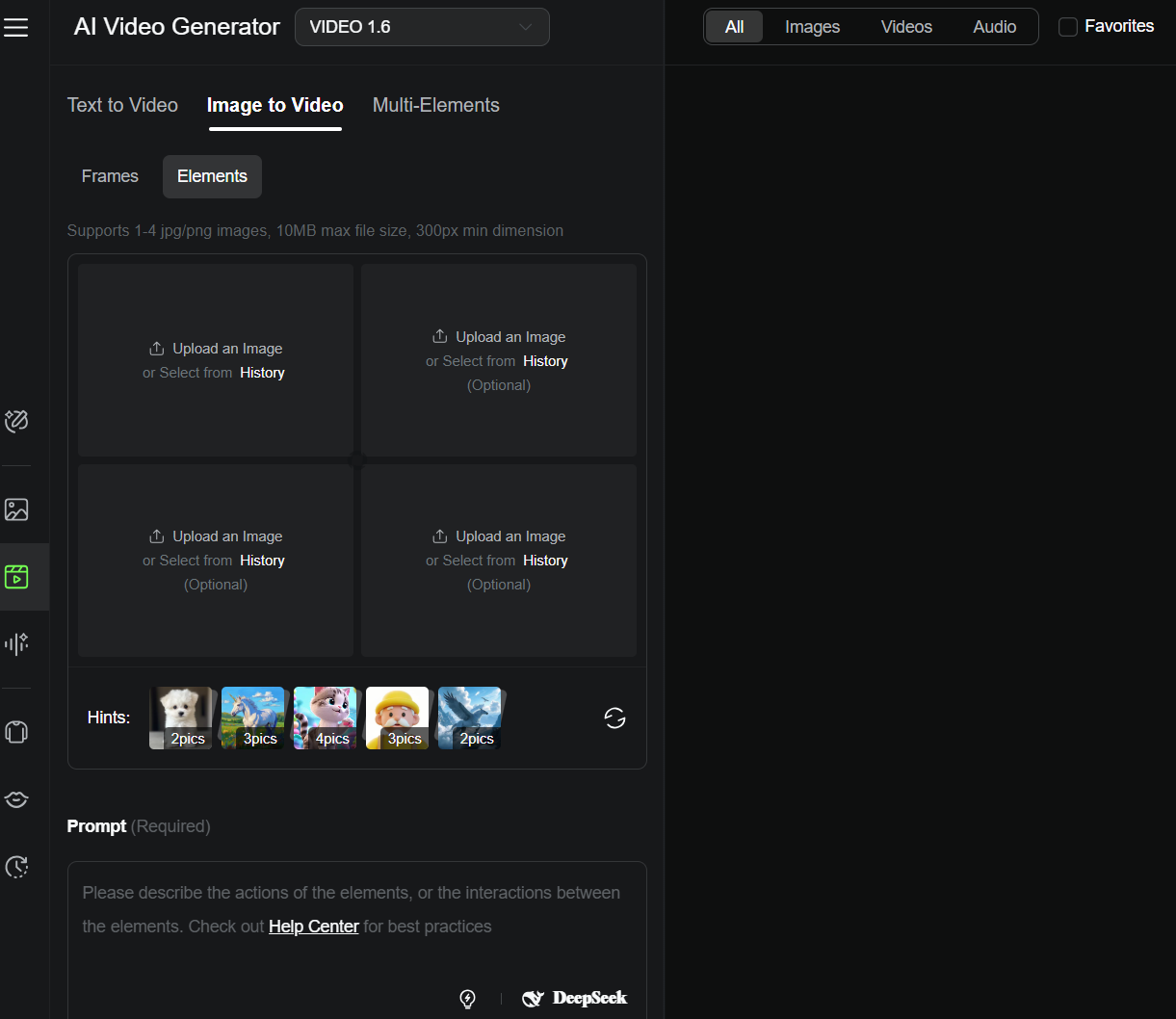
Available on the Kling AI 1.6 model, “Elements” is an image-to-video feature that lets you input multiple reference images for a more unified visual result.
You can select images with specific subjects, objects or even entire backgrounds to upload.
From there, you will need to input a detailed text prompt, describing the actions and interactions you want to see happen.
This gives Kling AI the proper context it needs to generate dynamic videos that fit within your creative vision.
How to Use Kling AI Elements
I have explained what Kling AI Elements is about, but how does it work? This is why we’re really here today, so follow along as we break down how to use this feature, step-by-step!
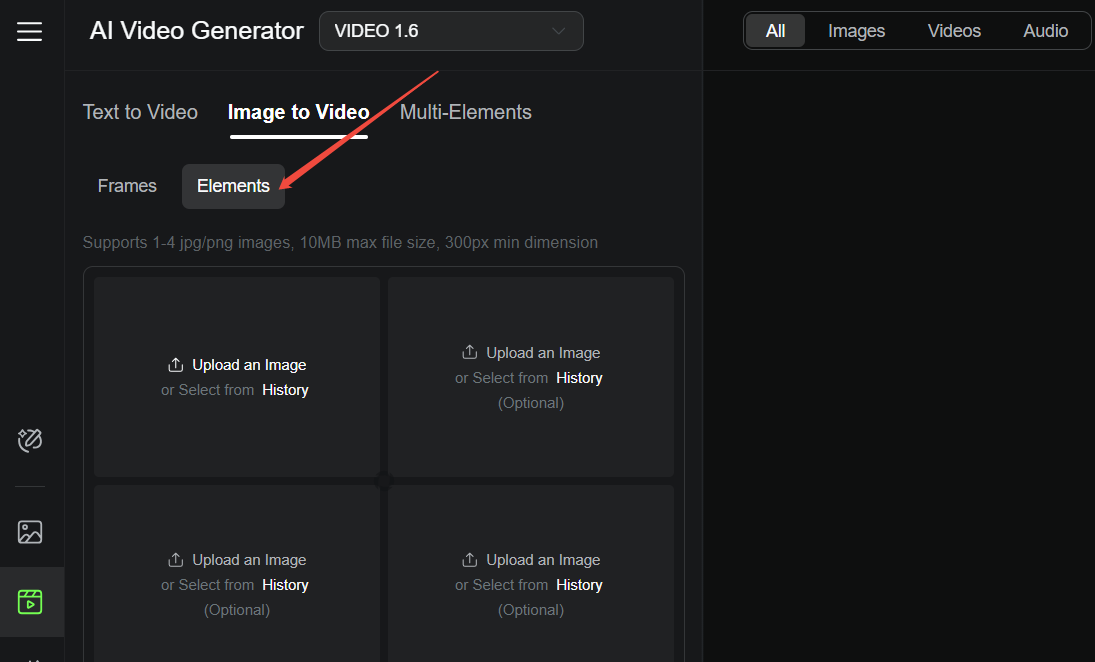
Step 1: Open the Elements Tab
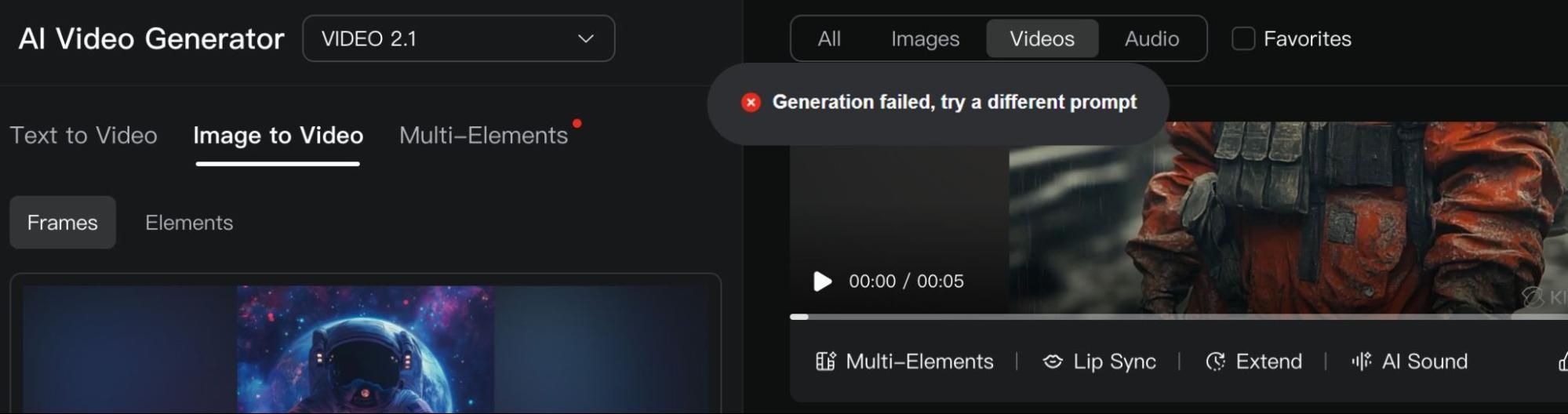
On the Kling AI user dashboard, click on the “Video” section on the sidebar to open the AI video generator. From there, select “Image to Video”, then click on “Elements” just below it.
Step 2: Upload Your Reference Images
You can generate images with Kling AI, upload your own or use one of the pre-existing images available in the Hints section. Just remember that you will need at least 2 reference images.
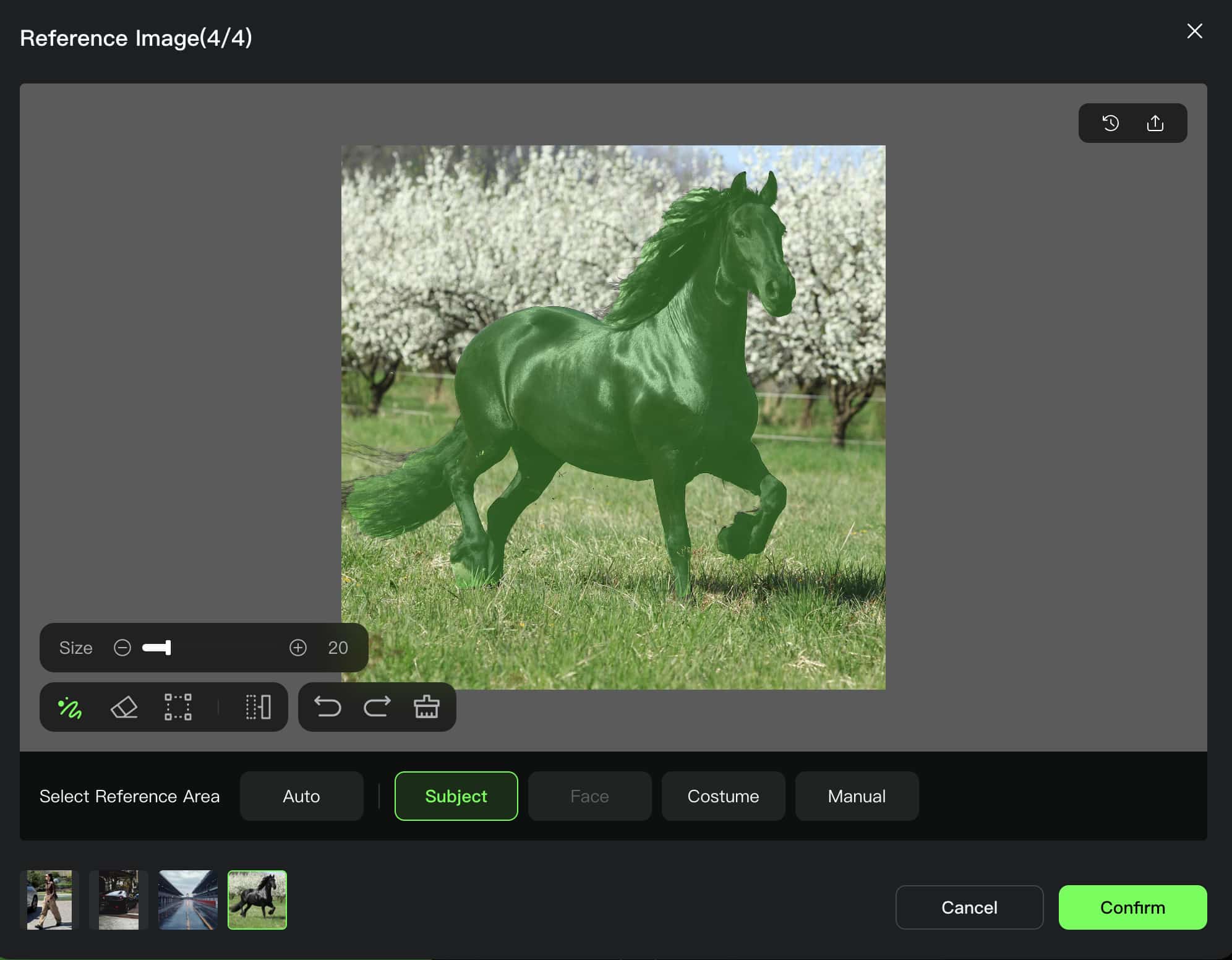
In total, you can add up to 4 ‘Elements’ images. You will need to specify the reference area in each image for Kling AI to use, be it subject, face, costume, or manual selection.
Step 3: Input a Detailed Prompt
This is where you can describe how you want the full scene to play out. The idea is to be as specific as possible about what you want Kling AI to do with each uploaded Element.
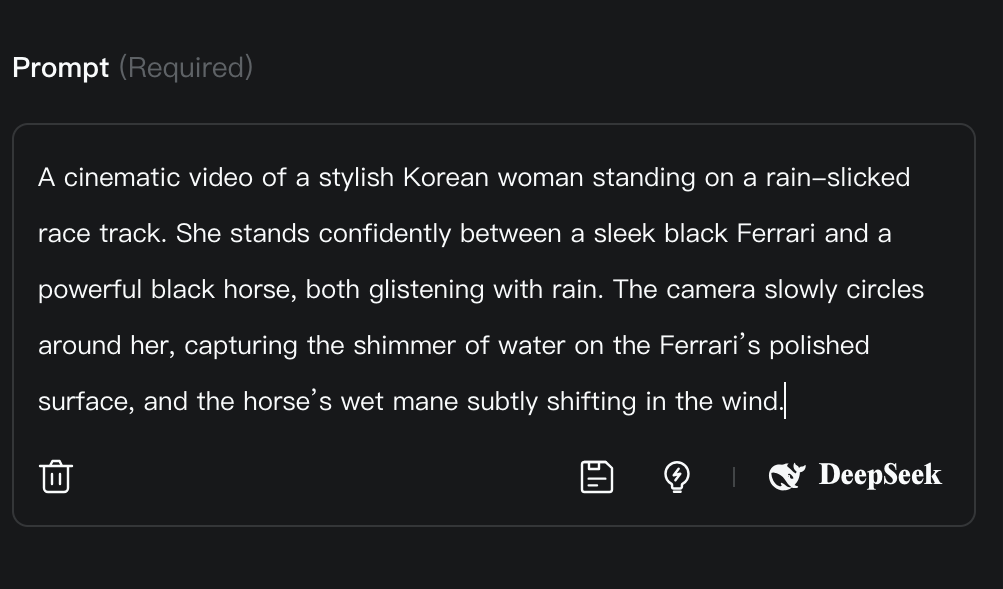
You can also click on the “Inspiration & Presets” button or ask DeepSeek for assistance. And feel free to mention what you don’t want to see in the final video for good measure.
Step 4: Set Your Desired Video Configurations
Just before you start to generate your video, you can also choose the duration and different aspect ratios that best suit your publishing needs across various platforms.
And with the Sound Effects option, you can include BGM and sound effects in your video generations using descriptive prompts—for example, ocean sounds, hard-hitting drums, etc.
You can also set the number of outputs that you want Kling AI to generate. Keep in mind that the more outputs you want, the higher the credit cost will be.
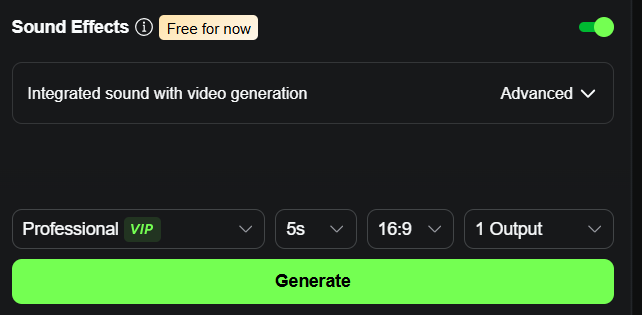
Step 5: Generate Your ‘Elements’ Video
When ready, you can click the ‘Generate’ button. After that, just be patient while Kling AI starts to process your video request, which should take a few minutes or less.
Once generated, the final video will be automatically saved in your ‘Assets’ folder. After reviewing the output, if you’re satisfied, you can download and share it.
Benefits and Uses of Kling AI Elements
By using Kling AI Elements, it becomes easier than ever to generate more personalized video creations that meet your precise needs and requirements. One major benefit is that it ensures greater character consistency.
For example, you can produce different videos that retain a constant element(s), be it a subject, art style, object, background, etc. This can be especially useful for marketing or promotional purposes, where creating several variants of the same theme is often required.
Another great aspect of the Elements feature is that users can place any subject or object in any environment with natural results. This makes it possible to explore unique and exciting concepts that would’ve otherwise cost a lot of time, effort, and money to produce.
It’s also worth pointing out that most image-to-video generators are typically limited to 2 reference images. But with Kling AI Elements, you can blend up to 4 images simultaneously with seamless transitions, making it easier to generate cohesive videos in one go.
Best Practices to Consider When Using Kling AI Elements
If you want to get the best out of the Elements feature, then here are a few tips to consider:
- Describe how you want the scene to unfold; no prompt leads to unpredictable results.
- Avoid using low-quality imagery to help Kling AI analyze the elements effectively.
- Consider the aspect ratio/duration that suits the platform you will publish the video on.
- Generate more than 1 video output for more promising variations to choose from.
Need an Alternative to Kling AI? Try HIX AI Video Generator
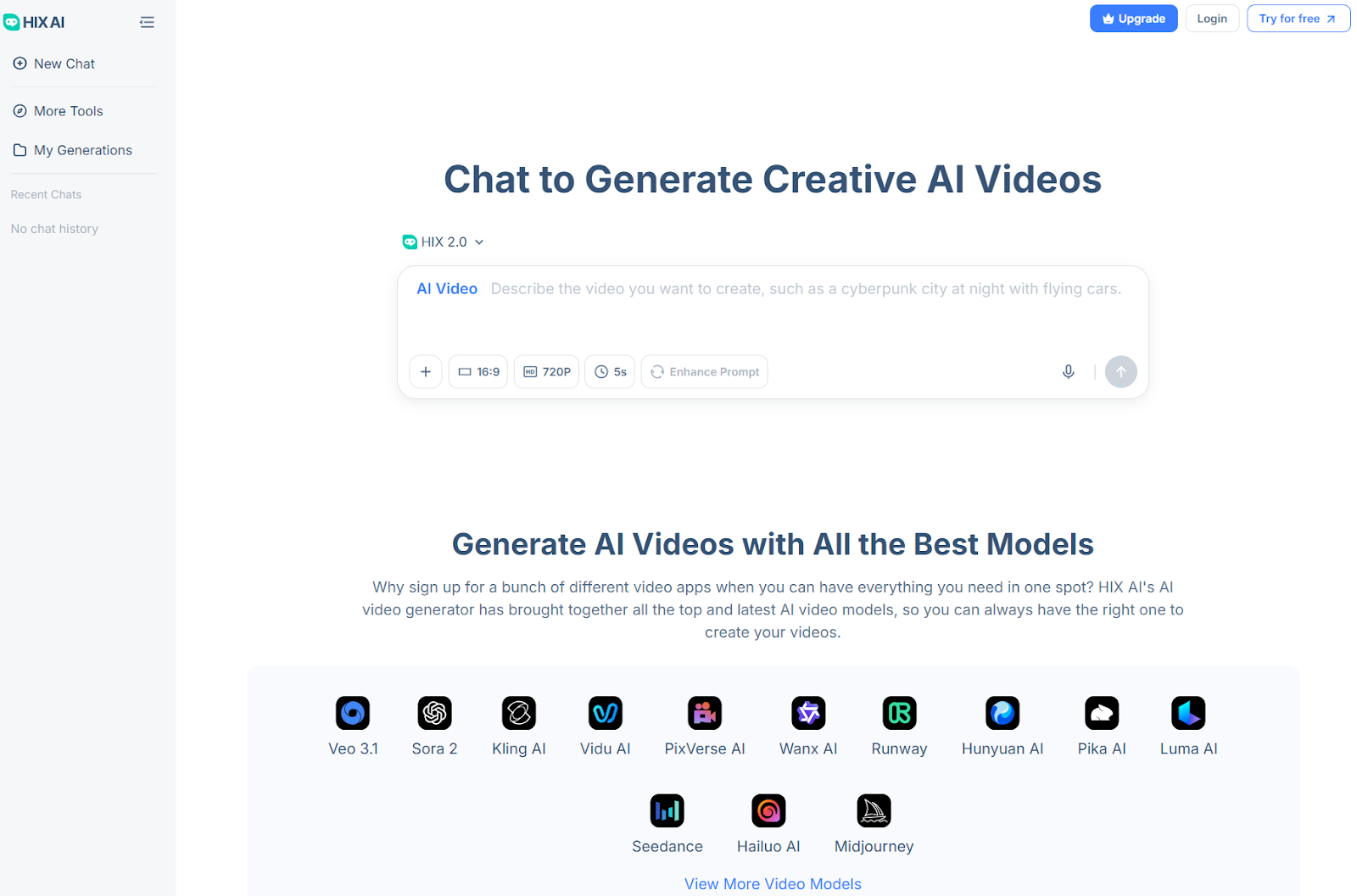
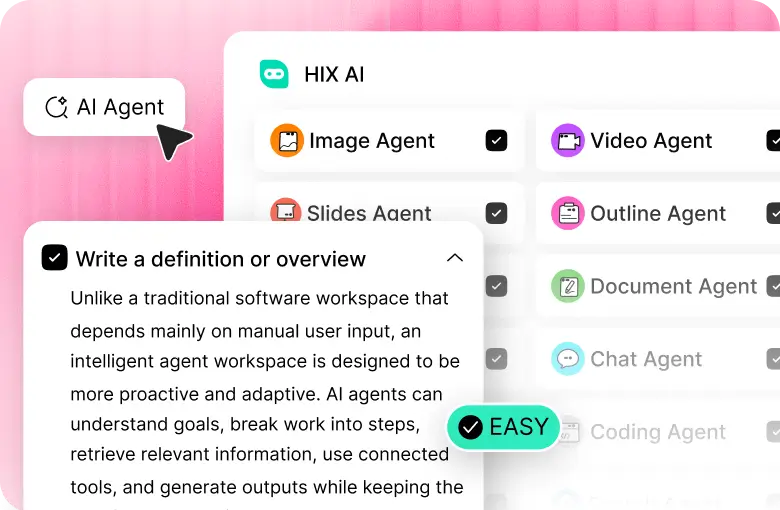
While Kling AI’s Elements feature is useful, other platforms can deliver equally impressive results. And at the top of that list is HIX AI.
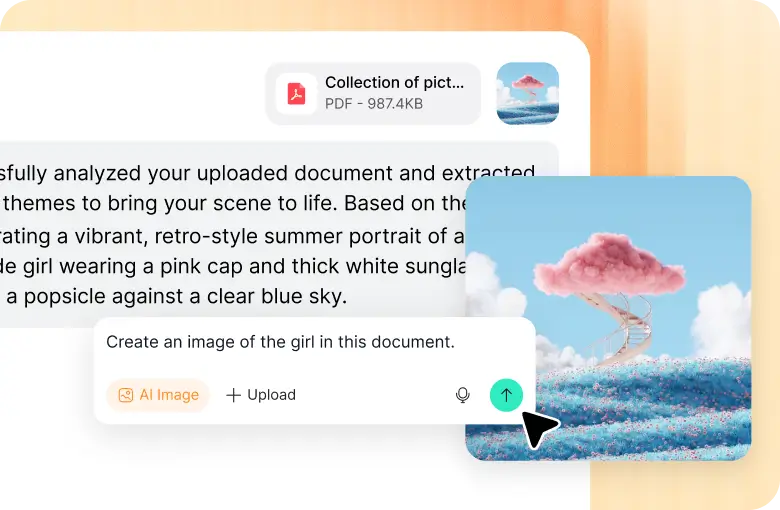
With this state-of-the-art tool, you can transform static images into cinematic videos that present incredibly high visual fidelity and scene consistency from start to finish.
And if you’re concerned about its level of precision and range, don’t worry!
It comes with intuitive prompt responsiveness and supports dozens of different visual styles, making it a powerful solution for artists, creators, and filmmakers.
Also, based on image to video AI, HIX AI has dozens of unique, novelty AI video effects, such as the AI kissing video generator, AI twerk video generator, earth zoom in, etc.
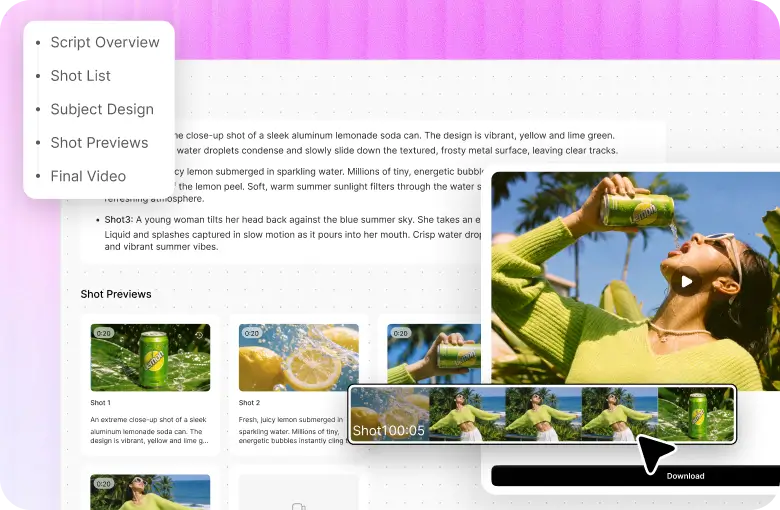
And for those who may need other video features, HIX AI also supports text to video AI and video to video AI, making it a truly comprehensive AI video suite.
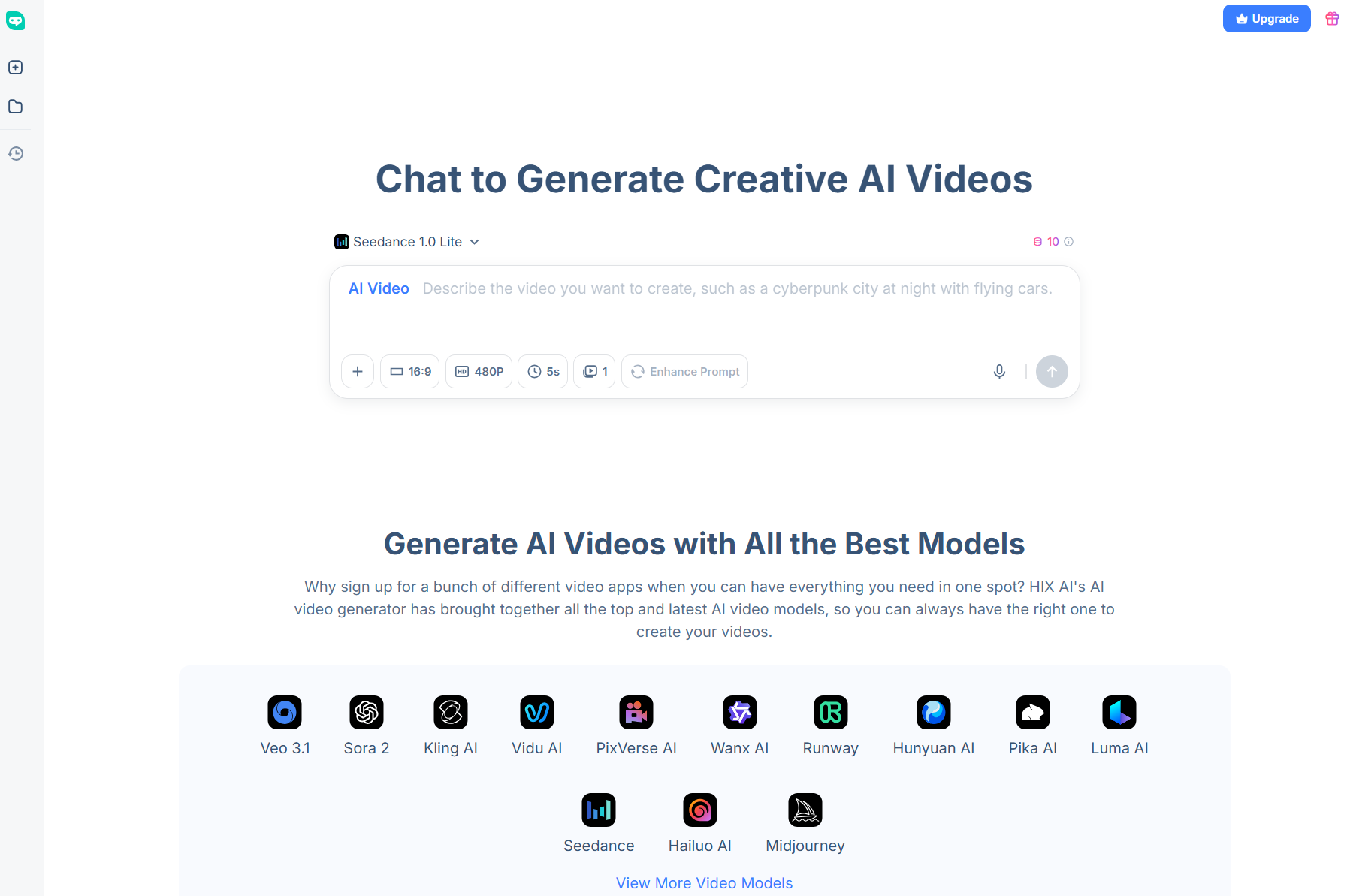
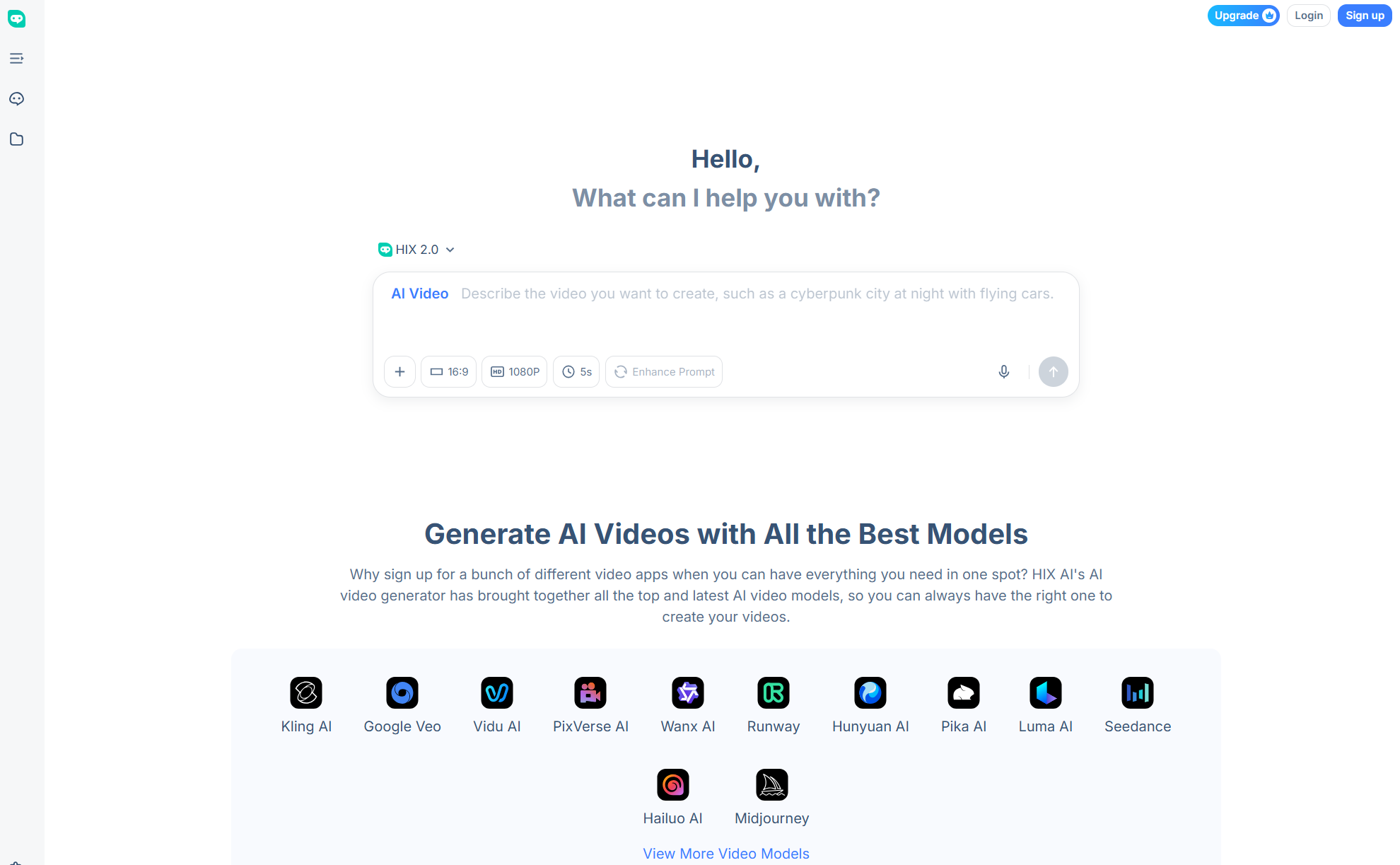
On top of that, this all-in-one platform comes integrated with all the latest AI video models for endless possibilities, such as Sora 2, Google Veo 3, Runway, PixVerse AI, Hailuo AI, Pika AI, Vidu AI, Luma AI and much more.
Conclusion
Using Kling AI Elements, you can combine and manipulate multiple image assets to craft the perfect visual scene, based on your instructions. This simple step-by-step process I have laid out here should guide you with zero hassle whatsoever.
But if you want higher-quality video outputs, more advanced customization options, and better cost-effective pricing options, then try HIX AI. With this platform, you can start taking your AI video creation to a truly professional-grade level!

![Como utilizar o Kling AI para gerar vídeos de qualidade [com imagens]](https://hix.ai/cms/kling_ai_e6d63109e7.jpg)